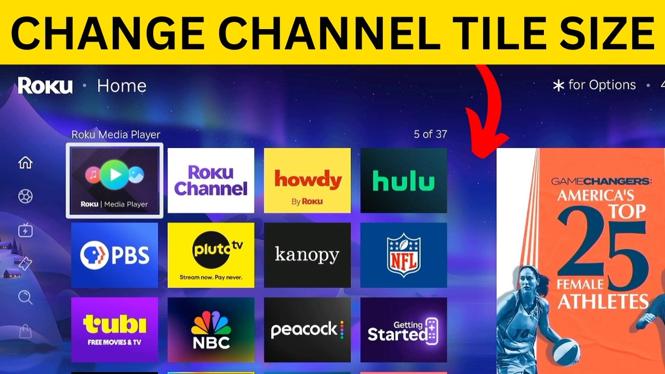
You can change the size of the channel tiles on your Roku TV Home screen from the Tile size setting. Choose Larger when you want bigger app tiles that are easier to see, or choose Smaller when you want to fit more channels on the screen at once.
The setting changes the channel grid on your Roku Home screen. It does not remove channels or change their order, so you can switch between sizes whenever you want.
Video Tutorial
Change the Roku channel tile size
Start from the Roku TV Home screen. You will need to open the left-side menu first, then go into the Home screen settings.
- Press the Left button on your Roku remote until the menu on the left side of the Home screen is selected.
- Scroll down and select Settings.
- Scroll right, then select Home screen.
- Scroll right and select Tile size.
- Select Smaller, Medium, or Larger.
- Press the Home button on your Roku remote to return to the Home screen and view the updated channel layout.
Your selection takes effect when you return to the Home screen. If the layout is not right for you, repeat these steps and select a different size.
What each tile size looks like
Roku gives you three choices for the channel tiles: Smaller, Medium, and Larger. Medium is the standard middle option shown in this setup.
Select Larger if you want channel icons to take up more space. In the demonstrated layout, the Larger setting shows three channels across the screen. This can make it easier to identify and select a channel from the Home screen.
Select Smaller if you have a lot of channels installed and want to see more of them before scrolling. In the demonstrated layout, Smaller shows five channels across the screen. You can scan through more apps without moving as far down the list.
Select Medium if you want a middle ground between larger icons and a denser channel grid. It is useful when neither the Smaller nor Larger view feels comfortable.
Which Roku tile size should you use?
There is no permanent best setting. Pick the one that makes navigating your own channel list easier.
- Use Larger if the channel icons feel too small or you prefer fewer, bigger tiles on each row.
- Use Smaller if you want to see more channels at once and reduce the amount of scrolling on the Home screen.
- Use Medium if you want the default-style balance between icon size and the number of visible channels.
Changing the tile size is also helpful after adding several streaming channels. A smaller grid can make a long Home screen feel easier to browse. On the other hand, larger tiles can make common channels quicker to spot when you only use a smaller group of apps.
Switch back to another tile size later
You can change this setting again at any time. Go back to Settings, open Home screen, and select Tile size. Then choose the size you want and press Home to check the result.
This is a Home screen display preference, so changing it only adjusts how your channel tiles are shown. Try Smaller if you want a five-across view like the one shown in the video, or try Larger for a three-across view with bigger channel icons.
More Roku Tips & Tutorials:
 Subscribe Now! 🙂

Discover more from Gauging Gadgets
Subscribe to get the latest posts sent to your email.