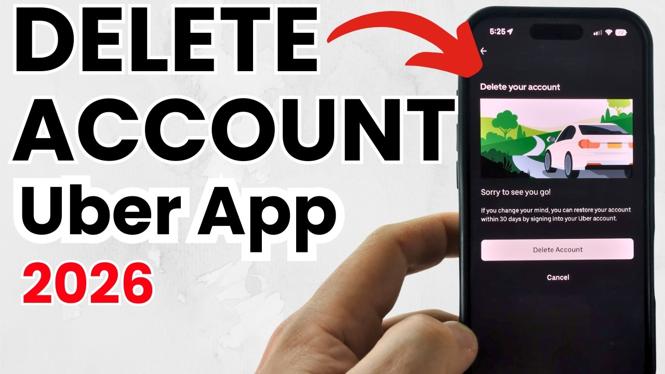
You can start an Uber account deletion request directly in the Uber app. The process is the same on an iPhone, Android phone, or Samsung Galaxy device. Uber first deactivates the account for 30 days. Your account is permanently deleted only if you do not log back in and reactivate it during that period.
Before you begin, make sure you can receive a text message at the phone number connected to your Uber account and that you know your account password. You will need both to confirm the deletion request.
Video Tutorial
Delete your Uber account in the app
- Open the Uber app on your iPhone, Android phone, or Samsung phone.
- In the bottom menu, select the person icon. On some versions of the app, this section is labeled Account.
- Scroll to the bottom of the Account page.
- Select Manage Uber Account.
- Select Privacy and Data in the top-right corner.
- Select Privacy Center.
- Scroll to the bottom of the Privacy Center page.
- Under Account Security, select Account Deletion.
- Select Accept to proceed with the account deletion process.
At this point, Uber sends a four-digit verification code by text message to the phone number associated with your account. Enter the code in the Uber app when prompted. This confirms that you have access to the account phone number.
Next, enter your Uber account password. After the password is accepted, Uber shows a summary of your account and the pending deletion request. Review the information on that screen, then select Continue.
Confirm the 30-day deactivation period
Uber does not permanently delete the account the second you submit the request. Instead, it deactivates the account for 30 days. This gives you time to change your mind.
Read the notice on the confirmation screen, then select Continue. You will be asked to provide a reason for deleting the account. Choose the reason that applies to you. Finally, select Delete Account to submit the request.
After you select Delete Account, the 30-day deactivation period begins. Do not sign back in to Uber during this period if you want the deletion to become permanent. Logging back in reactivates the account and stops the deletion process.
What happens after you delete an Uber account
Your Uber account is deactivated for 30 days after you confirm the request. During that time, the account is not yet permanently deleted. The key detail is simple: leave the account inactive for the full 30 days.
If you log in during those 30 days, Uber treats that as a request to reactivate your profile. If you still want to delete the account after reactivating it, you will need to start the account deletion steps again from the Uber app.
Once you have submitted the request, keep an eye on the date you confirmed it. That makes it easier to know when the 30-day period has passed. Avoid opening the app and signing in just to check the account status, since logging in can reactivate the account.
Uber account deletion steps at a glance
For a quick reference, the path in the Uber app is Account, Manage Uber Account, Privacy and Data, Privacy Center, then Account Deletion. You then verify with the four-digit text code, enter your password, select Continue, provide a reason, and choose Delete Account.
The menu names and process apply across iPhone, Android, and Samsung devices because you are completing the request inside the Uber app. The layout may show either a person icon or the word Account in the bottom menu, but both take you to the same place.
Important detail before finishing
The final Delete Account selection starts the deactivation period, not immediate permanent removal. Wait 30 days without logging back in if your goal is to permanently delete your Uber account. If you decide you need the account again before then, logging back in will reactivate it.
More Cancel Subscriptions Tips:
 Subscribe Now! 🙂

Discover more from Gauging Gadgets
Subscribe to get the latest posts sent to your email.