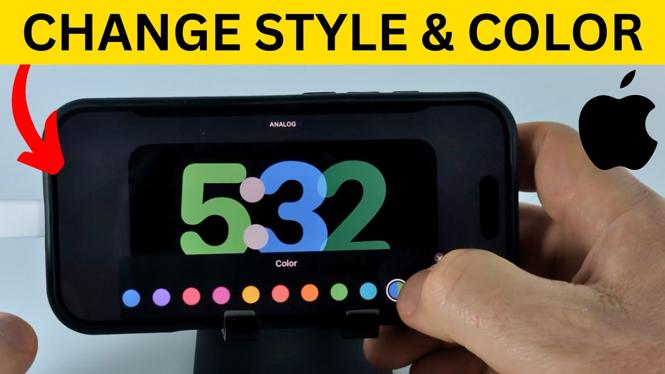
Customize the StandBy clock while your iPhone is charging
You can change the look of the clock shown in StandBy Mode without changing your normal Lock Screen. Put your iPhone on a charger in landscape orientation, open the clock view, then use the built-in clock picker to choose another design and color.
This works when StandBy is available and enabled on your iPhone. The feature is designed for a phone that is locked, charging, and resting sideways, such as on a nightstand stand or desk dock.
Video Tutorial
Change the clock style in StandBy Mode
- Connect your iPhone to power. You can use a wired charger or a compatible wireless charger.
- Turn the iPhone sideways into landscape orientation and leave it locked. The StandBy screen should appear after a moment.
- Move to the full-screen clock view if another StandBy screen is showing. StandBy can display widgets, photos, or a clock, so swipe through the available views until you see the clock.
- Touch and hold the clock screen. Your iPhone will ask you to unlock it before allowing changes.
- Unlock with Face ID or your passcode.
- Swipe up or down on the clock preview to browse the available clock styles. Each style has a different layout, typeface, or overall appearance.
- Stop on the clock design you want to use. Your selection becomes the preview for the StandBy clock.
The clock picker is only available while you are editing the StandBy clock. If you only tap the display or swipe between views, you are not yet in the customization screen. Touch and hold the clock first, then unlock your iPhone if prompted.
Pick a new clock color
After choosing a clock design, you can set its color from the same editing screen. The color options can vary depending on the clock style, so switch styles first if you do not see the look you want.
- While the clock customization screen is open, select the color control shown for the current clock style.
- Swipe through the available colors until you find one that suits your room, charger, or wallpaper setup.
- Tap the color you want to preview it on the clock.
- Tap the screen outside the picker, or finish editing, to keep the selected style and color.
A darker color can work well if your iPhone sits beside your bed. A brighter color can be easier to read across a desk. Try a few options while the phone is in the same place you normally charge it, since room lighting makes a big difference.
If the StandBy clock does not appear
First, make sure the iPhone is actually charging and is rotated sideways. StandBy is intended for landscape use, so it may not appear while the phone is upright. Keep the phone locked too. If you are actively using the phone, you will see the regular interface instead.
If the screen still does not enter StandBy, check that the StandBy feature is turned on in your iPhone settings. You can search Settings for StandBy and confirm that it is enabled. Then reconnect the charger, lock the iPhone, and place it in landscape orientation again.
Your charging stand also matters. A stand that holds the iPhone at a stable sideways angle makes StandBy easier to use. If the phone lies flat or keeps rotating between portrait and landscape, the display may not stay on the clock screen long enough for you to customize it.
Useful tips for your nightstand setup
StandBy remembers the clock look you choose, so you do not need to repeat these steps every time you charge your iPhone. Once you have chosen a style and color, place the phone on its charger as usual to use that appearance again.
If you want a different type of StandBy display later, swipe to the widget or photo views while StandBy is active. Those are separate from the clock view. Changing to another StandBy view does not mean you have lost your chosen clock style. You can return to the clock and edit it again at any time by touching and holding it.
Changing the StandBy clock is a quick way to make your charging screen easier to read and better suited to where you keep your iPhone. Use the design picker for the layout, then use the color options to finish the look.
More iPhone Tips & Tutorials:
 Subscribe Now! 🙂

Discover more from Gauging Gadgets
Subscribe to get the latest posts sent to your email.