You can cancel Xbox Game Pass recurring billing from the Subscriptions area in your Xbox settings. This lets you review active and canceled memberships, stop an automatic renewal, and see the date your access will end. The same process can help you manage Game Pass, Game Pass Ultimate, and other subscriptions shown on your console.
Video Tutorial
What happens when you cancel recurring billing
Turning off recurring billing stops your subscription from renewing automatically. It does not necessarily remove your access right away. After you select the cancellation option, Xbox shows the date that subscription will expire. You can keep using the subscription until that displayed expiration date.
This is useful if you want to avoid another Game Pass charge but still have time left in your current billing period. Before making changes, make sure your Xbox is connected to the internet so it can load your subscription details.
Cancel a subscription on your Xbox
- Turn on your Xbox and confirm it is connected to the internet.
- Press the illuminated Xbox button on your controller to open the guide menu.
- Press the right bumper to move across the top menu to Profile & system.
- Scroll down and select Settings.
- In the left-side Settings menu, scroll down to Account.
- Move to the right and select Subscriptions.
- Unlock your Xbox if prompted. You will then see your subscription list.
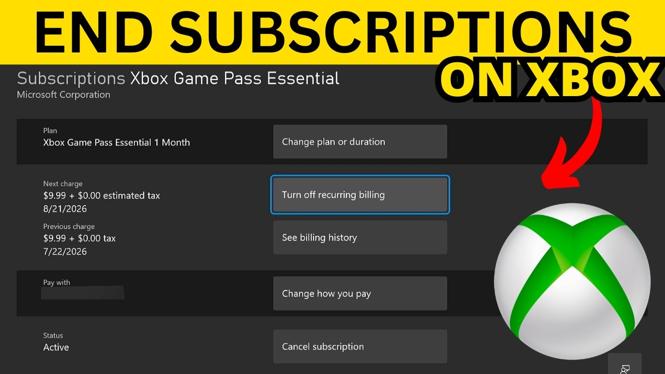
- Under the active subscriptions section, select the membership you want to stop. For example, select your Xbox Game Pass subscription.
- Scroll to the bottom of that subscription page and select Cancel subscription.
- Select Turn off recurring billing to confirm the change.
Check the expiration date
After you turn off recurring billing, check the confirmation details on screen. Xbox displays the date your subscription expires. This confirms that automatic renewal is off and tells you how long your remaining access lasts.
If you canceled Game Pass, you can continue using the included features until that expiration date. Once the date passes, the subscription will not renew unless you choose to subscribe again later.
Review active and canceled memberships
The Subscriptions page is also where you can see what is currently attached to your Xbox account. Look through the active subscriptions before canceling anything. This helps you make sure you select the correct membership, especially if you have more than one subscription listed.
You may also see canceled subscriptions in this area. An entry being listed as canceled does not mean it has disappeared immediately. Check its displayed expiration information to understand when access ends.
When you should turn off recurring billing
Turn off recurring billing when you no longer want a subscription to renew on its next billing date. You might do this after finishing a game, when you are taking a break from Game Pass, or when you want to review your memberships before another payment is due.
Do not select a subscription until you have checked its name. The cancellation applies to the subscription page you opened. Once you confirm Turn off recurring billing, use the expiration date Xbox provides as your record of when the service ends.
If you cannot access Subscriptions
Start by checking your internet connection, then open the Xbox guide again with the Xbox button. Go back to Profile & system, Settings, Account, and Subscriptions. If Xbox asks you to unlock the console, complete that step to view the account’s subscription information.
Once the list loads, select the active membership, scroll to the bottom, and use Cancel subscription followed by Turn off recurring billing. Confirm the expiration date shown after the change so you know the recurring charge has been stopped.
More Xbox Series X Tips & Tutorials:
 Subscribe Now! 🙂

Discover more from Gauging Gadgets
Subscribe to get the latest posts sent to your email.