How to Find Clipboard on Android Phone
If you’ve ever found yourself struggling to locate your clipboard on your Android phone, you’re not alone. Many users are unaware of how to access their clipboard history or manage what they have copied. Fortunately, this guide will help you easily retrieve copied text, links, and images, ensuring that you never lose important content again. Accessing your clipboard can make your daily tasks more efficient, allowing you to quickly paste previously copied information and streamline your workflow.
Video Tutorial
Why You Might Be Looking for This Tutorial
There are several reasons you might be searching for guidance on finding your clipboard on your Android phone:
- Easily Retrieve Copied Content: You may have copied important information but cannot remember where to find it.
- Productivity Improvement: By mastering clipboard management, you can enhance your productivity and efficiency.
- Manage Clipboard History: Understanding how to view and manage historical clipboard data can be crucial for tasks that require copying multiple items.
- Unlock Hidden Features: Knowing how to navigate the clipboard can help you take full advantage of your device’s capabilities.
Steps to Find Your Clipboard on an Android Phone
Follow these simple steps to access and manage your clipboard on your Android device:
- Copy Content: First, copy text, links, or images by selecting the desired content and tapping on the ‘Copy’ option in the context menu.
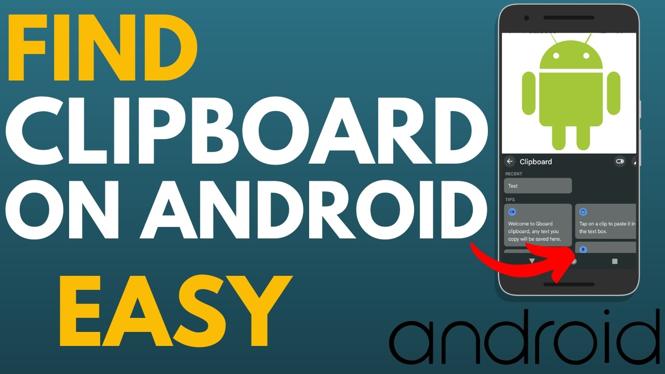
- Access Clipboard: To access your clipboard, open any app that allows text input, such as your messaging app or email. Tap on the text field to bring up the keyboard.
- Open Clipboard Manager: Most keyboards, including Gboard, have a clipboard manager. Look for the clipboard icon (often resembling a clipboard) in the toolbar above the keyboard; tap on it to open the clipboard history.
- View Your Clips: Here, you will see a list of your recently copied items. Tap on any item to paste it into your text field.
- Manage Your Clipboard: Depending on your keyboard settings, you may be able to delete items from your clipboard history or use additional features like pinning clips for easy access.
By following these steps, you can effectively manage your clipboard and improve your overall experience while using your Android phone. Mastering clipboard functionality opens up new avenues for multitasking and efficient use of your device.
More Android Tips & Tutorials:
 Subscribe Now! 🙂

Discover more from Gauging Gadgets
Subscribe to get the latest posts sent to your email.