How to Remove Parental Control From Google Account
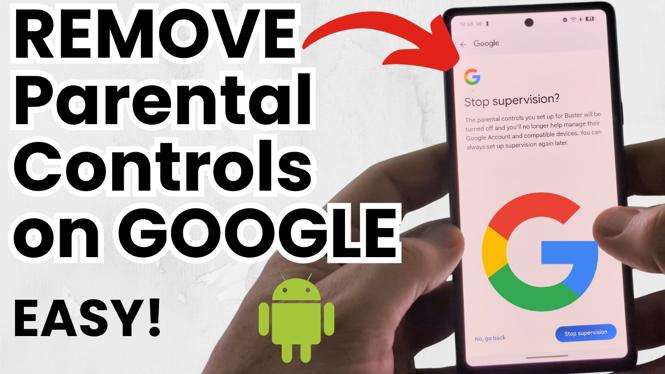
If you’re looking to regain full access to your Google account by removing parental controls, you’ve come to the right place. This guide will provide you with the steps needed to disable or remove Family Link restrictions from your Google account on any Android device, including the latest models from Google Pixel. Our detailed walkthrough is designed for users of all technical levels, ensuring you can follow along with ease.
Why You Might Be Looking for This Tutorial
Parental controls can be beneficial for children, but there may come a time when you want to remove these restrictions. Whether you’re no longer in need of the controls, you’re an adult looking to access restricted content, or perhaps you’re the parent who has previously set up controls and wish to lift them, this tutorial is here to help. Understanding how to navigate Google’s Family Link settings can empower you to customize your account to better suit your current needs.
Steps to Remove Parental Control From Google Account
- Open the Settings App: On your Android device, locate and tap the Settings app.
- Navigate to Google Account: Scroll down and find the option for Google. Tap on it to view your Google account settings.
- Access Family Link: Look for the Family Link or Parental Controls option within your Google account settings and tap on it.
- Disable Parental Controls: You may see options to manage or remove parental controls. Select this option and follow the prompts to disable the controls.
- Confirm the Removal: You may be asked to confirm your decision. Make sure to read any warnings before proceeding. Click ‘Confirm’ or ‘Remove’ as needed.
- Check Account Accessibility: Once removed, check to ensure that you have regained access to any previously restricted content or features.
Video Tutorial
By following these steps, you’ll be able to successfully remove parental controls from your Google account and enjoy unrestricted access to your desired content. If you encounter any issues, consider revisiting these steps for clarity or consulting Google’s support resources for further assistance.
More Android Tips & Tutorials:
 Subscribe Now! 🙂

Discover more from Gauging Gadgets
Subscribe to get the latest posts sent to your email.