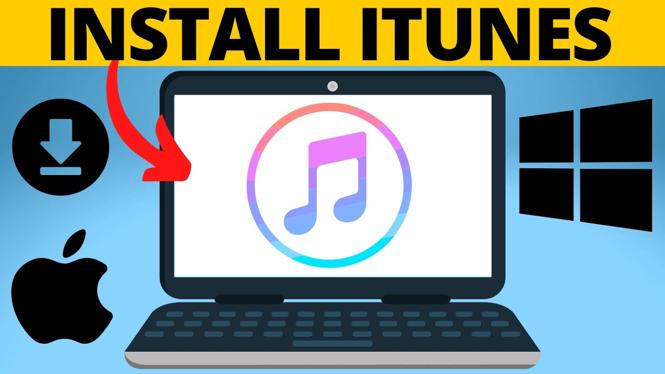
How to Download iTunes on Windows 11 PC or Laptop
In today’s digital age, iTunes remains a crucial application for many users, especially those who own Apple devices. Whether you’re looking to sync your iPhone, manage your music library, back up your device, or access your iTunes library, having iTunes installed on your Windows 11 PC or laptop is essential. This tutorial will guide you through the simple process of downloading and installing iTunes on your Windows 11 device using the Microsoft Store.
Video Tutorial
Why You Might Be Looking for This Tutorial
As Windows 11 continues to evolve, many users find themselves confused about installing applications that were once simple. If you’ve recently upgraded to Windows 11 and are looking to download iTunes, you might have questions such as:
- How do I access the Microsoft Store to find iTunes?
- Is iTunes compatible with Windows 11?
- What are the benefits of installing iTunes on my PC?
- How do I sync my iPhone with iTunes on Windows 11?
This tutorial will answer these questions and provide a clear step-by-step guide to ensure you have iTunes set up on your device in no time.
Steps to Download and Install iTunes on Windows 11
- Open the Microsoft Store: Click on the Start Menu and select the Microsoft Store app from the list of applications.
- Search for iTunes: In the Microsoft Store, use the search bar to type “iTunes” and hit Enter.
- Select iTunes: From the search results, find iTunes and click on it to open the app page.
- Download iTunes: Click on the ‘Get’ or ‘Install’ button to begin the download process.
- Wait for installation: Allow the Microsoft Store to download and install iTunes on your device. This may take a few moments.
- Open iTunes: Once installed, you can find iTunes in your Start Menu. Click on it to open the application.
- Sign in or create an Apple ID: If prompted, sign in with your Apple ID or create a new one to access your music library.
Conclusion
With iTunes successfully downloaded and installed on your Windows 11 PC or laptop, you can now enjoy effortless syncing with your iPhone, organizing your music collection, and accessing your iTunes library. This straightforward process ensures that you can stay connected with your Apple devices without any hassle. If you have any questions or run into issues during the installation, feel free to refer back to this tutorial or check the video for additional guidance.
More Windows 11 Tips & Tutorials:
 Subscribe Now! 🙂

Discover more from Gauging Gadgets
Subscribe to get the latest posts sent to your email.