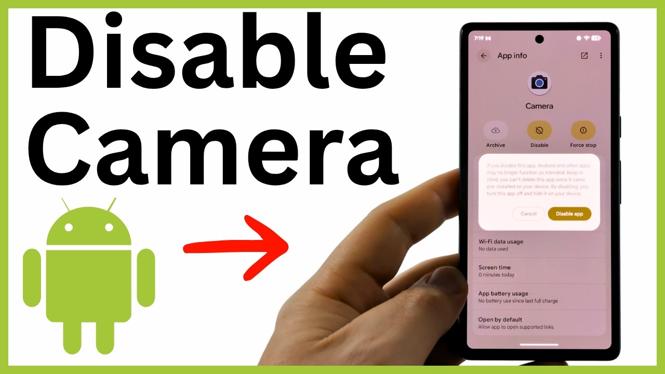
You can disable the Camera app and block camera access for every app from your Android privacy settings. Doing both matters. Disabling the Camera app stops you from opening that app, while the system-wide Camera access control prevents other apps from using the camera.
The menu names below are the ones shown on an Android phone in the video. Samsung phones also run Android, but their Settings layout can differ, so use the separate Samsung-specific instructions if these options are not in the same place on your phone.
Video Tutorial
Disable the built-in Camera app
Start by disabling the Camera app itself. This removes the normal camera app from use, so you will not be able to find or open it until you turn it back on. Android may warn that disabling the app could affect functions on your phone. That is expected, since features that depend on the camera may no longer work while it is disabled.
- Swipe up on your phone to open the app list.
- Open Settings.
- Select Apps.
- Choose See all apps to open the full app list.
- Scroll to the C section and select Camera.
- Tap Disable.
- When Android displays the warning, select Disable app to confirm.
At this point, the Camera app is disabled. This is useful if you do not want someone using the standard camera app on the phone. It does not, by itself, prevent every other app from requesting camera access. Continue with the privacy controls to block camera use across the device.
Turn off camera access for all apps
The main control for disabling the camera on Android is Camera access. When you switch it off, Android blocks apps from accessing the camera. If an app later tries to use it, Android can show an option to unblock access, but the camera remains blocked unless you choose to allow it again.
- Return to the main Settings page.
- Scroll down and select Security and privacy.
- Scroll to the Privacy controls section.
- Under Controls, select Camera access.
- Turn off Camera access.
This is the setting that stops camera access at the device level. Apps that normally need the camera, such as messaging, social, scanning, or video calling apps, will not be able to use it while this control is off. They may show a message asking you to enable access if you attempt a camera-related feature.
Remove camera permission from individual apps
You can add another layer of control through Permission manager. This lets you review which apps have camera permission and remove that permission from each one. It is a good way to check for apps that had access before you disabled the system-wide setting.
- Stay in Settings and open Security and privacy.
- Go to Privacy controls.
- Select Permission manager.
- Find and select Camera.
- Check for the message Device camera is blocked. This confirms the device-level camera control is off.
- Scroll through the app list. For every app listed under Allowed while using or Allowed, select the app.
- Select Don’t allow.
Repeat this for each app that appears as allowed. When you finish, apps should be listed under Not allowed instead. This prevents those apps from retaining their own camera permission if you later turn Camera access back on.
What stays disabled and how to restore it
With the Camera app disabled, Camera access turned off, and app permissions set to Don’t allow, your Android phone has several restrictions in place. The Camera app cannot be opened, apps cannot use the device camera through the global control, and individual apps do not have permission to access it.
To use the camera again later, reverse only the restriction you need. Turn Camera access back on if you want to let apps request camera use again. Return to an app in Permission manager if you want to grant that specific app permission. If you want the normal Camera app back, open its app settings and re-enable it. Keeping the app permissions set to Don’t allow gives you more control over which apps can use the camera after you restore access.
More Android Tips & Tutorials:
 Subscribe Now! 🙂

Discover more from Gauging Gadgets
Subscribe to get the latest posts sent to your email.