Choose Deactivate for a Break or Delete for Permanent Removal
You can delete or deactivate an Instagram account from the Instagram app through Account Center. Deactivation temporarily hides your Instagram presence so you can return later. Deletion is the option to choose when you want to permanently remove the account.
Both choices begin in the same place. Before confirming anything, Instagram shows information about the action you selected. Read that screen carefully, especially if you are deleting an account with photos, followers, or profile information you want to keep.
Video Tutorial
How to Delete or Deactivate Your Instagram Account
- Open the Instagram app on your iPhone, Android phone, or Samsung Galaxy phone.
- Go to your Instagram profile.
- Select the three lines in the top-right corner of your profile to open settings.
- Select Account Center. It appears as the first option.
- Scroll to the bottom of Account Center and select Manage accounts.
- Find the Instagram account you want to change. Select Manage next to that account.
- Select Deactivation or deletion.
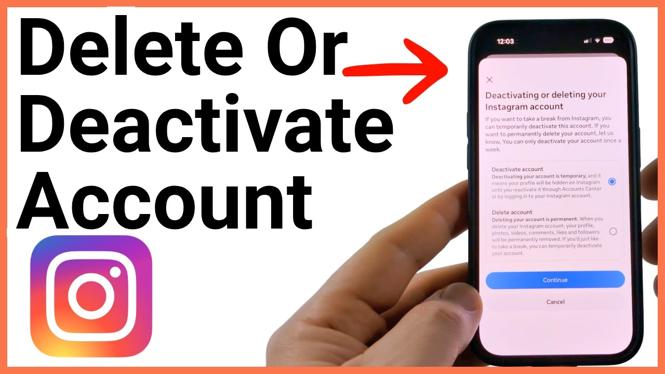
- Choose either Deactivate account or Delete account, then select Continue.
- Review the information Instagram provides about the option you chose. Select Continue again.
- Enter your Instagram password when prompted, then select Continue.
- Complete any final confirmation screen that appears.
What Happens When You Deactivate an Account
Deactivation is the temporary option. Use it if you want to step away from Instagram without choosing permanent account removal. This is useful when you need a break from posting, messages, or checking your feed but may want to use the same account again later.
Make sure you choose Deactivate account, not Delete account, on the Deactivation or deletion screen. The screens look similar because they are part of the same Account Center process, so the choice you make at this point matters.
Instagram may show additional steps based on your selection. Continue through those prompts and enter your password to verify that you own the account before the deactivation is completed.
What Happens When You Delete an Account
Deletion is the permanent option. Choose Delete account only when you want to remove the Instagram account rather than pause it. Instagram explains what will be deleted before asking for your password and final confirmation.
Take a moment on the review screen before proceeding. If the account includes photos, followers, or other information you want to keep, do not rush through the confirmation. The delete option is meant for removing the account for good once Instagram’s deletion process ends.
If you manage more than one Instagram account, check the account name in Manage accounts before selecting Manage. This helps you avoid changing the wrong profile.
If Instagram Shows Extra Prompts
The exact number of confirmation screens can differ depending on whether you choose deactivation or deletion. Instagram may ask you to continue more than once, explain the change, and request your password before it accepts the request.
Keep following the prompts for the account you selected. If you are not ready to confirm, stop before entering your password or before the final confirmation. You can return to Account Center, Manage accounts, and Deactivation or deletion later when you have decided which option fits your situation.
Quick Check Before You Confirm
- Select the correct Instagram profile under Manage accounts.
- Choose Deactivate account for a temporary break.
- Choose Delete account for permanent removal.
- Read Instagram’s explanation before selecting Continue.
- Enter your password only after you are sure about the action.
Once you complete the final prompt, Instagram processes the deactivation or deletion request for the account you selected.
More Instagram Tutorials:
 Subscribe Now! 🙂

Discover more from Gauging Gadgets
Subscribe to get the latest posts sent to your email.