Cancel Roblox Plus Before It Renews
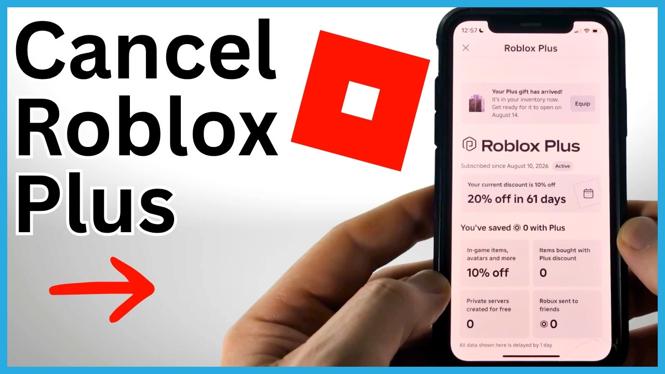
You can cancel Roblox Plus from the Roblox app on an iPhone, Android phone, or Samsung phone. The important part is to cancel the renewal before the next billing date. Your membership remains active until the expiry date shown after you confirm the cancellation.
In the Roblox app, open the menu, go to your Roblox Plus page, and use the management options at the bottom of the page. You will be asked to confirm that you want to cancel renewal.
Video Tutorial
How to Cancel Roblox Plus on Mobile
- Open the Roblox app on your phone.
- From the Home screen, select the three lines in the top-left corner to open the menu.
- Select Roblox Plus from the menu.
- Scroll all the way down on the Roblox Plus page.
- Select Manage.
- Scroll to the bottom of the management page and select Cancel Renewal.
- Review the warning, which shows when your subscription will end.
- Select Yes, Cancel to confirm.
How to Check That the Cancellation Worked
After confirming, return to the Roblox Plus information on the app. You should see that Roblox Plus expires on a specific date. This means automatic renewal has been canceled and you should not be billed for another membership period.
Your Roblox Plus benefits do not end immediately when you cancel renewal. They stay available until the expiry date shown in the app. After that date, the subscription ends unless you choose to subscribe again.
What Happens to Private Servers
The confirmation warning also explains that access to any private servers connected to your Roblox Plus membership ends on the subscription end date. Check the date carefully if you use private servers regularly or need time to make other arrangements before the membership expires.
Canceling renewal stops the next recurring charge. It does not change the date when your current paid membership period ends.
If You Cannot Find Cancel Renewal
Start from the Roblox app Home screen and make sure you open the menu using the three lines in the top-left corner. Then select Roblox Plus, scroll to the bottom, and choose Manage. The Cancel Renewal option is at the bottom of that management page.
If the page already shows an expiry date for Roblox Plus, your renewal may already be canceled. In that case, check the displayed date so you know when your current membership access will end.
Before You Finish
Keep an eye on the expiry date shown after cancellation. That date is your confirmation that Roblox Plus will end instead of renewing automatically. You can continue using the membership until then, but private server access tied to the subscription ends on that same date.
More Roblox Tips & Tutorials:
 Subscribe Now! 🙂

Discover more from Gauging Gadgets
Subscribe to get the latest posts sent to your email.