Remove a Lock Screen wallpaper you no longer use
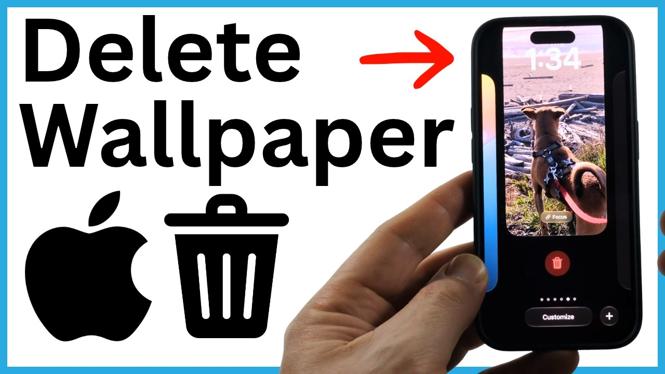
You can delete a saved iPhone Lock Screen wallpaper directly from the Lock Screen gallery. You do not need to open Settings, and you do not need to delete the photo from your Photos library.
The important part is to stay on the Lock Screen. Wake your iPhone, but do not unlock it. From there, press and hold an empty area to open the gallery of saved Lock Screen designs. You can then remove an entire design or replace only its photo.
Video Tutorial
How to delete wallpaper on iPhone Lock Screen
- Wake your iPhone so the Lock Screen is visible.
- Do not unlock the phone. Press and hold an empty area of the Lock Screen.
- Wait for the Lock Screen gallery to appear.
- Swipe left or right to find the saved Lock Screen wallpaper you want to remove.
- Swipe up on that Lock Screen design.
- Tap the trash icon.
- Confirm the deletion if your iPhone asks you to do so.
This removes the selected saved Lock Screen design from your wallpaper gallery. It is useful when you have old seasonal wallpapers, test designs, or pictures that you no longer want to switch back to.
Make sure you have selected the correct design before tapping the trash icon. The gallery can contain several Lock Screens that look similar, especially if you have used the same photo more than once with different clocks, widgets, or colors.
Delete the Lock Screen design, not necessarily the photo
Deleting a wallpaper from the Lock Screen gallery removes that wallpaper setup. It does not automatically mean the original image is deleted from your iPhone’s photo library.
For example, you might have a photo of your dog saved in Photos and also use it as one of your Lock Screen wallpapers. Removing the Lock Screen design gets rid of that saved Lock Screen option, while the original dog photo can remain in Photos.
If you also want to remove the image itself, you would need to delete it separately from your photo library. Keep that separate from this process so you do not delete a photo you still want to keep.
Change the wallpaper photo instead of deleting it
If you like the existing Lock Screen setup but only want a different picture, customize it rather than deleting it. This lets you keep the same Lock Screen and swap the current photo for another one.
- Wake your iPhone and remain on the Lock Screen without unlocking it.
- Press and hold an empty area to open the Lock Screen gallery.
- Find the Lock Screen you want to edit.
- Tap Customize beneath that design.
- Select the photo in the bottom-left corner.
- Choose Photo.
- Browse your photo gallery through your collections or the full photo view.
- Select the new image you want to use.
- Adjust the image position or zoom if needed.
- Tap Done to save the updated Lock Screen.
After you save, the same Lock Screen design uses the new photo. This is the better option when you want to keep its general look but replace an outdated image.
If the Lock Screen gallery does not open
Check that your iPhone is still locked. The press-and-hold action needs to happen on the actual Lock Screen, not after you have unlocked the phone and opened the Home Screen.
Also press and hold an empty part of the display. Avoid pressing directly on an item that may respond to a tap. Hold for a moment until the saved Lock Screen designs appear.
Once the gallery is open, swipe between your saved designs until you find the one you want. Then swipe up on that design to reveal the trash icon. You can repeat these steps to clean up other unused Lock Screen wallpapers and leave only the options you use.
Keep your wallpaper gallery easier to use
A smaller list of saved Lock Screens makes switching wallpapers faster. Remove duplicates, old photos, and designs you created only to test a layout. Keep the wallpapers you actually use, then change the photo on an existing design when you want a fresh image without starting over.
More iPhone Tips & Tutorials:
 Subscribe Now! 🙂


Discover more from Gauging Gadgets
Subscribe to get the latest posts sent to your email.