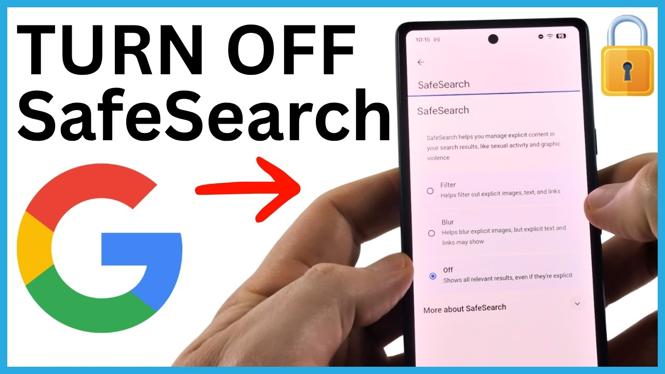
Check who controls SafeSearch first
Google SafeSearch can normally be turned on or off from Google.com. If the setting says Filtering on and shows a lock, you cannot always change it yourself. The lock usually means a parent, family manager, work administrator, or another account owner is controlling the setting.
Age also matters. Google accounts for users under 18 cannot turn off the SafeSearch filter. In that case, the person who manages the account can review the filtering settings, but the under-18 user will not be able to disable SafeSearch from their own Google account.
If you are over 18 and the setting is locked, check your device controls first. Then check whether the Google account is managed through Family Link.
Video Tutorial
Turn off SafeSearch from Google.com
Start on Google.com in a browser. This is the quickest way to see whether SafeSearch is available to change on the account currently signed in.
- Open your browser and go to Google.com.
- Select the small icon in the top-right corner of the Google page.
- Scroll down to SafeSearch.
- Choose the option to enable or disable SafeSearch if the controls are available.
If you can switch the setting off here, the change is complete. Return to Google.com and confirm that SafeSearch no longer shows as enabled.
If you see Filtering on with a lock, select the drop-down next to it. Google will show more information about why the filter is locked. This message helps you identify if parental controls or account management are causing the restriction.
Check parental controls on an Android phone
A locked SafeSearch setting may come from parental controls on the phone. Check these controls before changing settings through the Google account.
- Open the Settings app on your Android phone.
- Scroll down and select Parental controls.
- Select Web content.
- Check the available web content filtering setting.
- Also check the available filtering setting under parental controls.
If both filtering controls are turned off but Google SafeSearch still has a lock, the restriction is likely tied to the Google account instead of the phone. Changing browser settings alone will not remove an account-level SafeSearch lock.
Ask the parent or account owner to change Family Link
Family Link is where a parent or account owner can manage Google Search filtering for a supervised account. The parent or person who controls the account needs to make this change. A supervised user cannot bypass it from their own device.
- Open a browser and go to familylink.google.com.
- Sign in with the parent or account owner account that manages the user.
- Select Google Chrome and web or Google Search.
- Select Google Search to review the SafeSearch setting.
- Choose the filtering level available for the account, such as Blur or Off.
After the manager changes the setting to Off, open Google.com again on the affected account. The SafeSearch control should now be available or show that filtering is no longer on.
Why SafeSearch stays locked
The locked message is not a browser error. It means another control has priority over the setting you see on Google.com. The most common reasons are:
- The Google account belongs to a user under 18.
- A parent manages the account through Family Link.
- Parental controls are enabled on the Android device.
- A work phone or managed account has restrictions set by the account owner.
If Google says only a parent can change the setting, you need the parent or manager to sign in to the controlling account. If the device belongs to your workplace, contact the person or team that manages the phone or Google account. Do not expect changing browsers, clearing browser data, or signing out of Google.com to remove a restriction that is applied through account management.
Confirm the setting after making changes
Once the parent or account owner updates filtering, go back to Google.com while signed in to the affected account. Open the top-right icon, scroll to SafeSearch, and check its current status. If it still shows a lock, review the lock information again. It may point to a different manager or a device-level parental control that still needs attention.
For adult accounts you control, turning off device filtering and changing the Google Search setting in Family Link can remove the lock. For supervised accounts and users under 18, SafeSearch remains controlled by the parent or account owner.
More Google Tips & Tutorials:
 Subscribe Now! 🙂

Discover more from Gauging Gadgets
Subscribe to get the latest posts sent to your email.