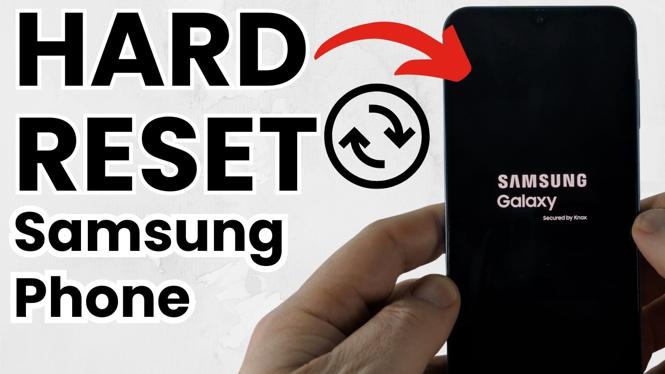
Hard reset a frozen Samsung phone
If your Samsung phone is frozen, does not respond to touch, or has a black screen, you can force it to restart with the physical buttons. Hold the Power button and Volume Down button together until the screen turns off. This can take 10 to 15 seconds.
The phone may show the power menu before it restarts. Keep holding both buttons. When the Samsung logo appears, release them and allow the phone to boot normally.
One important detail: the method shown here is a forced restart. It does not walk through a factory reset or erase your phone’s data. A factory reset is a separate process that returns a device to its original settings and removes data.
Video Tutorial
Steps to hard reset a Samsung phone
- Locate the Power button and the Volume Down button on your Samsung phone.
- Press and hold both buttons at the same time.
- Continue holding them until the screen turns off. Expect this to take around 10 to 15 seconds.
- Do not release the buttons if the power menu appears. Keep holding them while the phone powers down and begins to reboot.
- Release both buttons as soon as you see the Samsung logo.
- Wait for the phone to finish starting up, then unlock it and use it as normal.
What to expect during the restart
Your phone may not react right away, especially if the display is black or the screen is unresponsive. Keep the Power and Volume Down buttons pressed together for the full 10 to 15 seconds. Releasing them too early can stop the restart from happening.
Seeing the power menu does not mean the process failed. The phone in the tutorial displays that menu before the screen turns off. Continue to hold both buttons until the display goes dark, then wait for the Samsung logo.
The first boot after this restart can take a little longer than usual. Give the phone time to start. Once it reaches the lock screen, you can unlock it and check whether the issue that caused the freeze or black screen has cleared.
Hard reset versus factory reset
The phrase hard reset can mean different things depending on where you see it used. In this guide, it means forcing a Samsung phone to reboot with the button combination. This is useful when the phone is frozen, touch input is not working, or the display is black.
A factory reset is different. It wipes data and restores the device to its original factory settings. Do not assume that holding Power and Volume Down performs a factory reset. The button method demonstrated in the video simply restarts the phone, after which you can unlock it and continue using it.
This distinction matters if you are preparing a phone for resale, trying to remove personal information, or dealing with a forgotten lock. Those situations require a true factory reset process, not the forced restart covered here.
When to use this button combination
Use this method when your Samsung phone is stuck and you cannot restart it normally from the screen. It is particularly helpful when touch controls do not respond or you cannot see enough on the display to use the on-screen power options.
Pressing and holding the two buttons is also the right next step when the phone appears to be on but has stopped responding. Wait for the Samsung logo after the screen turns off, then let go. If the phone restarts and reaches its normal lock screen, the forced reboot is complete.
Quick checklist
- Press Power and Volume Down together.
- Hold both for 10 to 15 seconds.
- Keep holding if the power menu appears.
- Release the buttons when the Samsung logo appears.
- Allow extra time for the phone to finish booting.
More Samsung Phone Tips & Tutorials:
 Subscribe Now! 🙂

Discover more from Gauging Gadgets
Subscribe to get the latest posts sent to your email.