Subscribe to Roblox Plus from the Robux screen
You can find Roblox Plus from the Roblox app’s home page on iPhone and Android. Start by opening Roblox and staying on the main home screen. The option is located under the Robux section, not in your phone’s settings or a separate app.
Roblox shows multiple Roblox Plus options, including Roblox Plus 500. Pick the amount that fits the subscription you want. If you are eligible, the app may also show a free first month or free trial option.
Video Tutorial
Get Roblox Plus on your phone
- Open the Roblox app on your iPhone, Android phone, Samsung Galaxy phone, Google Pixel, or another supported mobile device.
- From the Roblox home page, select the small Robux icon in the top-right corner of the app.
- Scroll down through the Robux page until you reach the bottom area.
- Look for the section labeled New on Roblox. You should see Roblox Plus listed there.
- Review the available Roblox Plus choices. The app shows different amounts, including Roblox Plus 500.
- Select the amount shown under the Roblox Plus option you want. If a free month or free trial is available for your account, select that option if you want to use it.
- Wait for the subscription details to load. Roblox will show information about the subscription and the amount you will be charged starting today.
- Select Confirm to complete the purchase.
After you confirm, Roblox should display a message letting you know that the purchase was successful. The subscription is then attached to the Roblox account you used in the app.
Check that Roblox Plus is active
You can verify the subscription from the Roblox app after completing the purchase. This is useful if you want to make sure the confirmation went through and see what is included with your plan.
- Select the Menu button in the top-left corner of the Roblox app.
- Scroll down in the menu and select Roblox Plus.
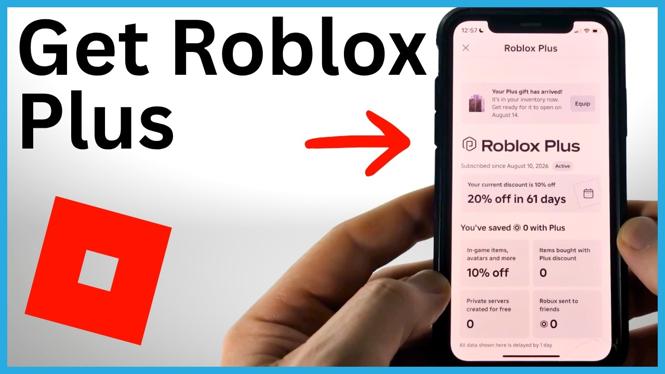
- Check the subscription status on that page. Roblox should show that you are subscribed and that the membership is active.
The Roblox Plus page also lists the benefits included with your subscription. The information shown can include options related to trading or sending Robux, a discount, and several other listed items. Check this page for the details that apply to the specific Roblox Plus option you selected.
What to check before confirming
Take a moment to read the subscription screen before you select Confirm. Roblox displays the charge information during this step, so you can see the amount associated with the Roblox Plus choice. A free first month or free trial is not guaranteed for every account. Only use it if the option appears in your app.
If the Roblox Plus details take a moment to appear after you select an amount, wait for the page to finish loading. Once the information is visible, you can review it and confirm the purchase. Afterward, use the Menu and Roblox Plus page to verify the active status instead of relying only on the purchase message.
Quick path to Roblox Plus
The full path shown in the app is simple: open the Roblox home page, tap the Robux icon in the top right, scroll to New on Roblox, and select Roblox Plus. Choose an available amount, review the charge details, and tap Confirm. Then open the top-left Menu and select Roblox Plus to confirm that your subscription is active.
More Roblox Tips & Tutorials:
 Subscribe Now! 🙂

Discover more from Gauging Gadgets
Subscribe to get the latest posts sent to your email.