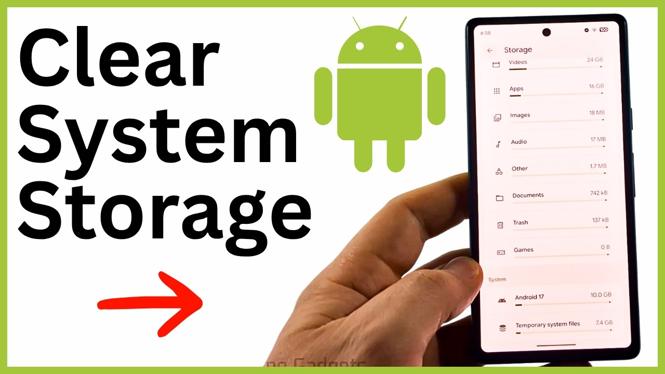
System storage can take up more space than you expect on an Android phone. You cannot remove the Android version itself, but you can reduce temporary files that contribute to the System total. Start with a restart, then clear app caches and install any waiting software updates.
These steps can free space without deleting your photos, messages, or other personal files. The labels can differ slightly between Android phones, but the video demonstrates the Settings, Apps, and System areas used for this cleanup.
Video Tutorial
Check what is using system storage
Open your phone’s storage screen and look for System. You will see the Android version listed there. That part is required for the phone to run and cannot be removed. The temporary system files shown below it can change over time, and they are the part you may be able to reduce.
Do not expect System storage to drop to zero. Android needs storage for its operating system and related files. The aim is to remove unnecessary temporary data so you have enough room to install apps, download files, and use the phone normally.
Restart your Android phone first
A restart is the quickest place to start if temporary system files are unusually large. When the phone is low on RAM, some data can be stored in system files. Restarting clears RAM and may release storage space.
- Restart your Android phone.
- After it turns back on, return to the storage screen.
- Check the System total again to see whether it has decreased.
If the number is still high or you still need more free space, move on to your apps. Cached app data is one source of temporary files on an Android device.
Clear cached data from apps
App caches hold temporary data so apps can load content more quickly. Over time, the cache for a frequently used app can become fairly large. Clearing it removes those temporary files, not the app itself.
- Open Settings.
- Select Apps.
- Choose an app from the list.
- Open the app’s storage details.
- Select Clear cache.
- Repeat this for apps with large cache amounts.
After you tap Clear cache, the cache figure for that app should show zero bytes or a much smaller amount. In the video, clearing one app cache recovered nearly 250 MB. Your results will depend on the apps you use and how long their temporary data has been building up.
Focus on apps you use often, since they are more likely to have accumulated cached data. You can work through the list one app at a time and clear the cache where it makes a useful difference.
Be careful with Clear storage
In an app’s storage details, you may also see Clear storage. This can recover more space, especially for an app you rarely use. However, it is different from clearing the cache. Clearing storage can reset the app and remove its saved app data, settings, or sign-in information.
Only use Clear storage when you are comfortable setting up that app again or losing its locally stored data. If you only want to remove temporary files, choose Clear cache instead.
Show system apps and clear their caches
The regular app list may not show every app on the phone. You can reveal system apps, then check their cache sizes as well.
- Return to the Apps list in Settings.
- Select the three dots in the top-right corner.
- Choose Show system.
- Open a system app to view its storage details.
- Select Clear cache where available.
This gives you more apps to review than the default list. Stick to clearing caches unless you know exactly what clearing an app’s storage will remove. When you finish, check the main storage screen again to compare the available space and the System total.
Install pending software updates
A downloaded Android update can take up system storage while it waits to be installed. Checking for updates is useful when you have cleared caches but the System category is still larger than expected.
- Return to the main Settings page.
- Scroll down and select System.
- Select Software updates.
- If an update is available, install it.
Installing a waiting update can remove the downloaded update files that were using storage. It also keeps the phone’s software current. Once the update finishes, return to storage and review the available space again.
What to do if you still need space
If System storage remains high after restarting, clearing app caches, and installing updates, remember that some of the total is normal Android system data. Continue checking individual apps for large caches rather than trying to remove the Android version. Clear cache regularly on apps that build up temporary files, and use Clear storage only when you understand the data that app will reset.
More Android Tips & Tutorials:
 Subscribe Now! 🙂

Discover more from Gauging Gadgets
Subscribe to get the latest posts sent to your email.