You can add a song to a Facebook post from the Facebook mobile app before you publish it. Start by building the post as usual, then use the built-in Music option to search for and attach a track. The exact location of that option is different on iPhone and Android phones.
This process is shown in the Facebook app on iPhone, Android, and Samsung phones. The desktop Facebook steps are not shown here, so the instructions below focus on the mobile app.
Video Tutorial
Start a new Facebook post
Open the Facebook app and go to the Home screen. At the top of the screen, select What’s on your mind? This opens the post composer, where you can create the post that will include your music.
Add the content you want to share first. You can enter text, add pictures, or include the other content you want in the post. Once the post content is in place, add the song before publishing.
- Open the Facebook app on your phone.
- Go to the Home screen.
- Select What’s on your mind? at the top.
- Add your text, pictures, or other post content.
After you have created the main part of the post, find the music option for your type of phone. Facebook places it in a different part of the post composer on Android and iPhone.
Add music on Android or Samsung
On an Android or Samsung phone, the music choice may be inside an additional-options menu. From the post composer, select the small three dots at the bottom of the screen. Then select Music.
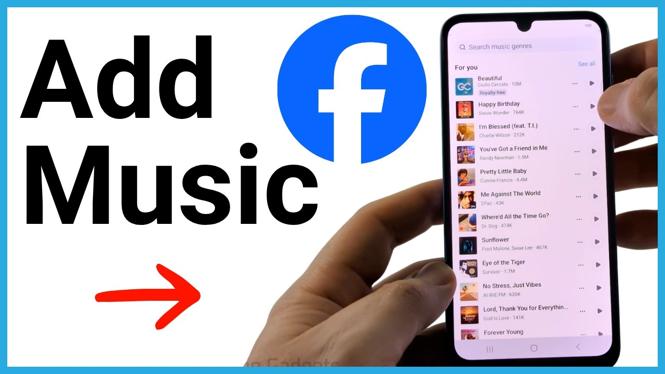
The music screen lets you search Facebook’s available music by song name or genre. Use the search field at the top if you already know the song you want. If you are still deciding, searching by genre can help you browse relevant results.
- While creating your post, select the three dots at the bottom.
- Select Music.
- Use the search field at the top to search for a song or genre.
- Select Play to preview a result.
- Select the song itself to add it to your Facebook post.
Previewing is useful because search results can include songs with similar names, covers, and different versions. Play the result before selecting it so you can confirm it is the track you want attached to the post.
Add music on an iPhone
On an iPhone, Facebook makes the music option easier to spot in the post composer. Look below your profile image and above the area where you type your post text. Select Music there.
After you select Music, search for a song or genre from the music screen. You can use Play to hear a preview, then select the song to add it to the post.
- Create a post by selecting What’s on your mind?.
- Add any text, pictures, or other content you want to share.
- Select Music below your profile image and above the text area.
- Search for a song or genre.
- Select Play to preview a song.
- Select the song to attach it to the post.
Once the track has been added, Facebook displays the song with its album art in the post composer. Review the post before sharing it. This is a good time to make sure your text, photos, and selected song all match what you want to publish.
Publish and check the post
When the post is ready, select Post. Facebook publishes it to your profile and to the audience you selected for that post. To confirm the music was included, open your profile and scroll to your newest post. The post should show the attached music and album art.
- Check that the correct song appears in the post composer.
- Select Post.
- Open your Facebook profile.
- Scroll to your latest post and verify that it includes the music.
If the Music option looks different
Facebook can arrange options differently depending on your phone. On Android and Samsung devices, check the three dots at the bottom of the post composer. On an iPhone, check the area below your profile image and above the text field for Music.
Also make sure you are creating a regular post from What’s on your mind? in the Facebook app. The steps shown here are for adding a song while making that type of mobile Facebook post. Once you select a song and publish, the post will include its music display and album artwork.
More Facebook Tips & Tutorials:
 Subscribe Now! 🙂

Discover more from Gauging Gadgets
Subscribe to get the latest posts sent to your email.