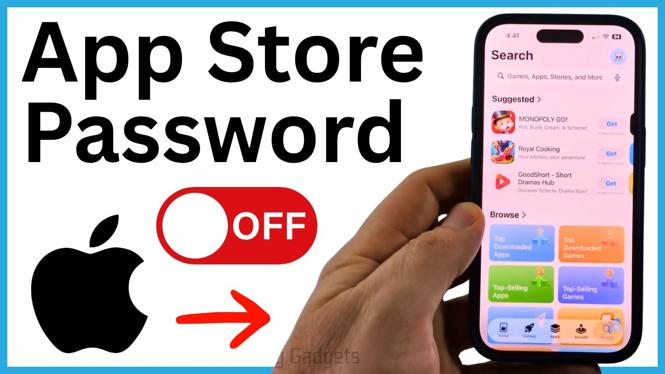
Stop Password Prompts for Free App Downloads
If the App Store asks for your Apple ID password whenever you install an app, change the free-download password setting first. This setting is inside your Apple Account purchase settings. After you set free downloads to never require a password, you can close Settings right away. There is nothing extra to save.
If the prompt still appears after that, check a separate Screen Time restriction. The Screen Time setting can require a password for App Store purchases even when the free-download setting is already turned off.
Video Tutorial
Change the Free Downloads Password Setting
Start with this method when you only want to stop password requests for free apps. You will need to enter your Apple ID password once to open the account settings.
- Open Settings on your iPhone.
- Select the first option at the top for your Apple Account.
- Scroll down and tap Media & Purchases.
- Enter your Apple ID password when prompted.
- In the account settings, scroll down and select Password Settings.
- Under Free Downloads, select Never Require.
That change takes effect without a Save button. Close Settings, then return to the App Store and try installing a free app. Instead of entering your password, you should be able to select Install and let the download begin.
If the App Store Still Requests a Password
Screen Time has its own purchase restriction that can keep the password requirement active. Check this setting if you made the free-download change but the App Store still asks for your password during an install.
- Open Settings again.
- From the main Settings page, scroll down and select Screen Time.
- Scroll down and tap Content & Privacy Restrictions.
- Select iTunes & App Store Purchases.
- Find Require Password.
- Select Don’t Require.
Once this option is changed, go back to the App Store and start an app install. You should only need to select Install, without typing your Apple ID password for the download.
What These Settings Change
The first setting controls password requests for Free Downloads. It is the best place to start because it targets the problem of entering a password for free apps.
The second setting is under Screen Time, which is where iPhone purchase restrictions are managed. If that restriction is set to require a password, it can override the result you expect after changing the free-download option. Setting Require Password to Don’t Require removes that additional requirement for App Store installs.
These steps do not change your Apple ID password. They only change when iPhone asks you to enter it for App Store activity. Keep that distinction in mind if you are troubleshooting a password that is not accepted, an account sign-in issue, or a purchase you did not authorize.
Quick Checks If the Option Is Missing
Make sure you are signed in to the Apple Account you use for the App Store before checking these menus. The Media & Purchases section is where the password settings shown above are accessed, and it may ask you to authenticate before it displays the account options.
Also check both locations rather than changing only one. Start with Password Settings and set Free Downloads to Never Require. If the password prompt remains, open Screen Time, then Content & Privacy Restrictions, and review Require Password under iTunes & App Store Purchases.
After each change, test with a free app from the App Store. This gives you a clear way to confirm which setting was causing the password prompt on your iPhone.
More iPhone Tips & Tutorials:
 Subscribe Now! 🙂

Discover more from Gauging Gadgets
Subscribe to get the latest posts sent to your email.