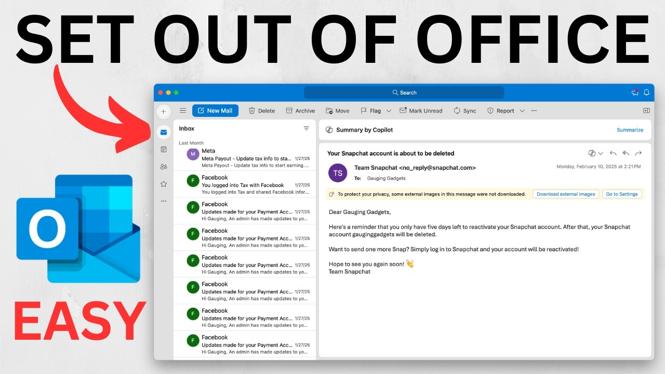
Turn on automatic replies before you leave
An out of office setup in Outlook does two useful things. It sends an automatic reply to people who email you, and it can block your calendar so people can see that you are unavailable. You can turn it on immediately or schedule it for a future day, a full week, or another period of time.
Before you start, write the message you want people to receive. Keep it simple. State that you are away, include the date you will return if needed, and point people to another contact only if that is appropriate for your situation.
Video Tutorial
How to set out of office in Outlook
Use Outlook settings to configure automatic replies and the time you will be away. The scheduled option is especially helpful when you are planning time off in advance because Outlook can start and stop the replies based on the dates and times you choose.
- Open Outlook.
- Select the Settings gear in the top-right corner.
- Select Account.
- Select Automatic replies.
- Turn on Automatic replies.
- Enter the automatic reply message you want Outlook to send while you are away.
- Select Send replies only during a time period if you need the out of office reply to run on a schedule.
- Set the start date and time, then set the end date and time.
- Choose the calendar and meeting options you need during that time.
- Select Save.
Once you save the setting, Outlook will send your configured automatic reply to emails received during the selected time period. If you did not set a time period, replies begin after you turn automatic replies on.
Set the right start and end time
The time period controls when your out of office reply is active. For a one-day absence, set the start and end on the same day. For a vacation or longer break, choose a start date and time before you leave and an end date and time for when you return.
Check both values before saving. A start time that is too early can send replies before you are actually away. An end time that is too late can keep your calendar blocked after you are back. Setting a precise end time also helps prevent Outlook from declining or blocking time longer than intended.
If you are leaving later in the week, you can set everything up ahead of time. Outlook will wait until the scheduled start time to begin sending automatic replies. This saves you from needing to remember to turn the feature on right before you leave.
Block your Outlook calendar while you are away
Under the time period options, you can choose Block my calendar. Turn this on when you want people checking your calendar to see that you are out of office. It helps avoid meeting requests being placed into the time you already know you will not be available.
Outlook also provides options to automatically decline invitations during the selected period. You can additionally choose to decline and cancel current meetings that fall within the timeframe. Review these choices carefully before you save, especially if you have meetings that need to be moved or handled by someone else.
Blocking the calendar and using automatic replies work well together. The calendar tells people trying to schedule time that you are unavailable. The automatic reply gives email senders a direct response so they know why you may not respond right away.
Confirm that out of office is active
After selecting Save, look in the top-right area of Outlook. A warning or notice appears there when automatic replies are configured for your email address. This is a quick way to confirm that the setting is active.
If you scheduled the replies for a future period, the notice confirms the configuration is in place. Your automatic replies will follow the timeframe you entered. If your plans change, return to Settings, then Account and Automatic replies to adjust the dates, edit the message, or turn the feature off.
What to include in your automatic reply
Your message does not need to be long. Include only the details people need to know. For example, you can say that you are out of office until a specific date and will respond after you return. If urgent requests should go to a teammate, add that person’s contact details.
A clear message and an accurate calendar block reduce follow-up emails and meeting conflicts while you are away. Once the dates, message, and calendar settings look correct, save the automatic replies setting and leave Outlook to handle the rest.
More Outlook Tips & Tutorials:
 Subscribe Now! 🙂

Discover more from Gauging Gadgets
Subscribe to get the latest posts sent to your email.