Reset a locked Samsung phone from Recovery mode
If you forgot the PIN, password, or pattern on your Samsung phone, you can erase it through Android Recovery mode. This removes the data on the phone and returns it to factory settings, so only use it if you are sure you want to wipe the device.
On newer Samsung phones, the important part is connecting the phone to a Windows PC or Mac with a USB cable before you enter Recovery mode. The cable needs to stay connected while you complete the reset. This method is useful for locked Galaxy phones, including newer Galaxy S and Galaxy A models.
A factory reset does not recover the files, apps, photos, or settings currently stored on the phone. If you have a backup, you can restore eligible content after you finish setting up the phone again.
Video Tutorial
What you need before starting
You need a USB cable and a Windows computer or Mac. Plug one end of the cable into your Samsung phone and the other end into the computer. Do this before trying the button combination.
Keep the phone connected to the computer throughout the process. You will also need enough battery power for the phone to turn on and complete the reset. If the phone has very little charge, leave it connected long enough to charge before continuing.
This process erases the phone. It is not a way to keep the existing data while removing the lock screen. Afterward, you will set up the device like a new phone.
Factory reset your Samsung phone without the password
- Connect your locked Samsung phone to a Windows PC or Mac using a USB cable. Leave the cable connected.
- From the lock screen, press and hold the Volume Down button and the Power button together.
- Keep holding both buttons until the phone screen turns off.
- As soon as the screen turns off, switch your button hold. Release Volume Down, then press and hold Volume Up and Power.
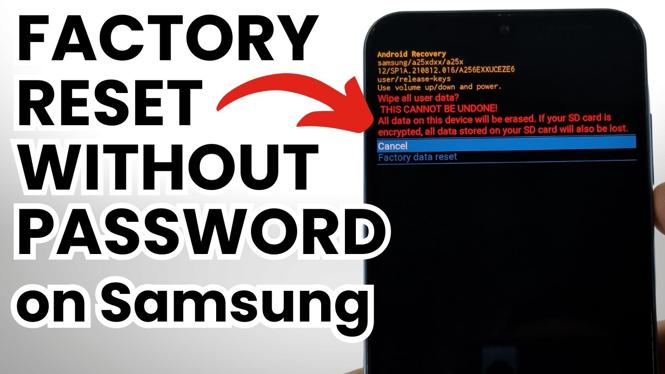
- Continue holding Volume Up and Power until the Android Recovery screen appears.
- Use the volume buttons to move through the Recovery menu. Use the Power button to select an item.
- Move down to the factory reset option, shown as Factory data reset, and select it with the Power button.
- Confirm the reset when prompted. The phone will erase its data and reset to factory settings.
The reset can happen quickly once you confirm it. Do not disconnect the USB cable or try to restart the phone while the erase is taking place. Wait for the phone to finish and restart.
What happens after the reset
When the reset is complete, the phone starts the normal setup process. You can choose language and region settings, connect to Wi-Fi, and sign in to the accounts needed for the device.
Keep in mind that erasing a locked phone does not necessarily remove account verification. Android security may ask you to sign in with a Google account that was previously used on the phone. If that happens, use the account credentials associated with the device. This check helps protect a lost or stolen phone from being set up by someone else.
If the phone belonged to another person, make sure they remove it from their account before you try to use it. If it is your phone and you cannot remember the account details, recover access to that account through the appropriate account recovery process before resetting if possible.
If Android Recovery does not appear
First, check the USB connection. On newer Samsung phones, the phone must be connected by USB to a computer to enter the Recovery mode used in this process. Plug the cable firmly into both devices, then try the button sequence again.
Timing also matters. Start by holding Volume Down and Power. The moment the screen goes black, change to Volume Up and Power. If you wait too long, the phone may simply restart instead of opening Android Recovery.
Try the sequence again if the phone restarts normally. Keep holding the second button combination until you see the Android Recovery screen. Once you are in that menu, use only the volume buttons to move and the Power button to select, since the touchscreen may not be available there.
Before you confirm Factory data reset
Pause at the final confirmation screen and make sure this is the device you intend to erase. A factory reset removes the lock screen, but it also removes local content and settings. You cannot undo the wipe after confirming it.
If you still know the password or have another way to access the phone, back up anything important first. If you are fully locked out, use this recovery method only when erasing the device is the right option.
More Samsung Phone Tips & Tutorials:
 Subscribe Now! 🙂

Discover more from Gauging Gadgets
Subscribe to get the latest posts sent to your email.