Scan a QR Code With Your iPhone Camera
Your iPhone can scan a QR code directly in the Camera app. You do not need to take a photo or install another app for the normal method.
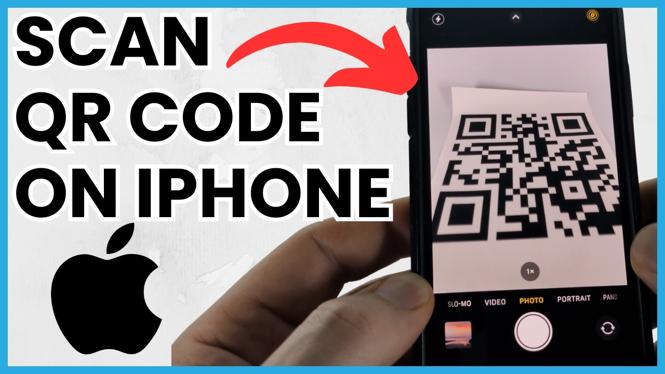
Open Camera and point it at the QR code. Keep the full code visible in the camera view. When the iPhone recognizes it, a yellow line appears with the QR code result. Select that result to open the code’s contents.
This can open a web link, show information stored in the code, or provide details needed to connect to Wi-Fi. Keep the phone steady and make sure the QR code is fully in view if it does not appear right away.
Video Tutorial
How to Scan a QR Code on iPhone
- Open the Camera app on your iPhone.
- Hold your iPhone so the entire QR code is visible in the camera view.
- Wait for the yellow line containing the QR code result to appear.
- Select the yellow result to open the QR code contents.
You only need to point the camera at the code. Avoid moving the phone away before the result appears. If the code is small, damaged, poorly lit, or partly outside the camera view, the iPhone may not recognize it immediately.
Do not press the shutter button to scan the code. The Camera app reads the QR code automatically when the code is in view and QR scanning is enabled.
Turn On QR Code Scanning in Settings
If you can see a QR code in the Camera app but no yellow result appears, check the QR scanning setting. It may be turned off.
- Open Settings on your iPhone.
- Scroll down and select Camera.
- Find Scan QR Codes.
- Make sure Scan QR Codes is turned on.
- Return to the Camera app and point it at the QR code again.
Once this setting is enabled, the Camera app should show the yellow QR code result when it recognizes a code. Select the result rather than trying to photograph the code.
Use QR Code Gadget if the Camera Will Not Scan
If Scan QR Codes is already enabled and the iPhone camera still does not read the code, you can use QR Code Gadget as a backup scanner. Open a browser on your iPhone and go to QRcodegadget.com.
On the site, select QR Code Scanner. The browser needs permission to use your iPhone camera. Allow camera access so the scanner can see the QR code.
- Open your browser and go to QRcodegadget.com.
- Select QR Code Scanner.
- Allow access to your camera when prompted.
- Position the QR code in the scanner view so the complete code is captured.
- Check for the message QR Code Found at the bottom of the scanner.
- Scroll down to view the contents that were read from the QR code.
The scanner displays the contents after it finds the code. If the result is a web address, you can copy it, open a new browser tab, paste the address, and select Go to open it.
Check the QR Code Result Before Opening It
A QR code can contain more than a website address. It may include text, Wi-Fi information, or another type of data. Read the result before you open it, especially when the code comes from an unfamiliar sign, message, or printed item.
With the Camera app, selecting the yellow result opens what the QR code contains. With QR Code Gadget, you can view the contents first and copy them if needed. This is useful when you want to inspect a link before pasting it into your browser.
Quick Fixes When an iPhone Cannot Read a QR Code
Start by confirming that the whole QR code is visible. Hold the phone still, move closer or farther away, and improve the lighting if possible. Then verify that Settings, Camera, and Scan QR Codes are enabled.
If the Camera app still does not show a QR code result, use the QR Code Scanner on QR Code Gadget and allow camera access. When it reports QR Code Found, scroll down to see the scanned contents and copy them when necessary.
More iPhone Tips & Tutorials:
 Subscribe Now! 🙂

Discover more from Gauging Gadgets
Subscribe to get the latest posts sent to your email.