There Is No Recently Deleted List in the Phone App
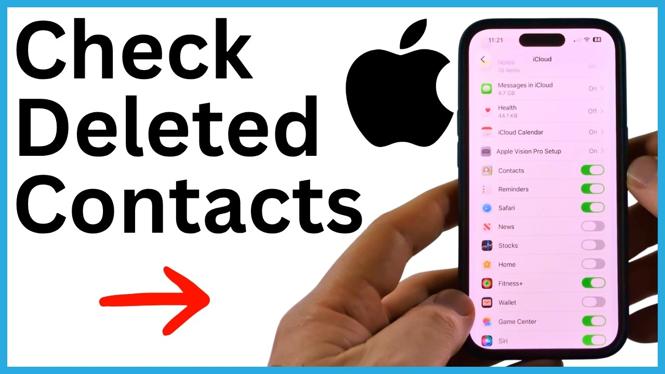
If you delete a contact from the Phone app, you cannot open a Recently Deleted folder there. The contact may still be available through iCloud, though. You can refresh iCloud Contacts on your iPhone to download contacts that are stored in iCloud but are not currently on the phone.
If that does not bring the number back, check the Google account you use on the iPhone. Contacts saved through Gmail or other Google services can appear in Google Contacts even when they are missing from the iPhone.
Video Tutorial
Refresh iCloud Contacts on Your iPhone
Start by checking iCloud Contacts. This method turns off the Contacts sync setting temporarily, keeps the contacts already stored on the iPhone, then merges your iCloud contacts back onto the device.
- Close the Phone app.
- Open Settings.
- Select the first option at the top of Settings, the one for your Apple Account and iCloud settings.
- Select iCloud.
- Scroll down until you find Contacts.
- Turn Contacts off.
- When prompted, select Keep on My iPhone. This keeps the contacts currently on your phone while the iCloud setting is off.
- Turn Contacts back on.
- Select Merge when iPhone asks what you want to do with your contacts.
Selecting Merge tells the iPhone to add contacts from iCloud that are not already on the device. Give it a little time to sync after turning Contacts back on. You can also restart the iPhone if the list does not update right away.
Then open the Phone app and check your contacts list again. If the deleted contact was still saved in iCloud, its name and phone number should download back to the iPhone.
Check Google Contacts if iCloud Does Not Restore It
Some contacts are backed up to a Google account instead of, or in addition to, iCloud. This is common if you use Gmail or Google apps. You can check the contacts stored in that Google account from a browser on your iPhone.
- Open a browser on your iPhone.
- Navigate to Google.
- Sign in to the Google account you use for contacts, if needed.
- Select the dots next to your profile icon in the top-right corner.
- Scroll through the menu and select Contacts.
Google Contacts loads the contacts saved in that account. Look through the list for the deleted person. Even if the contact is not currently visible in the iPhone Phone app, you may be able to find the name and phone number here.
Export a Google Contact Back to Your iPhone
If you find the missing contact in Google Contacts, you can export it as a vCard and add it back to your phone. A vCard is a contact file that iPhone can open and save.
- In Google Contacts, select the three lines in the top-right corner.
- Select Export.
- Choose the vCard option for Android or iOS.
- Select Export.
- When the contact card opens on your iPhone, select the check mark to add it.
Return to the Phone app and open your contacts list. The exported contact should now be back on your iPhone.
What to Check Before You Stop
First, allow iCloud time to finish syncing after you select Merge. A contact may not appear immediately. Next, make sure you searched the same Google account where the contact was originally saved. If you have more than one Google account, sign in to each relevant account and check its Contacts list.
These two checks cover the places shown here for finding a deleted phone number. iCloud can restore contacts that remain in your iCloud data, and Google Contacts can provide a saved contact that is associated with your Google account.
More iPhone Tips & Tutorials:
 Subscribe Now! 🙂

Discover more from Gauging Gadgets
Subscribe to get the latest posts sent to your email.