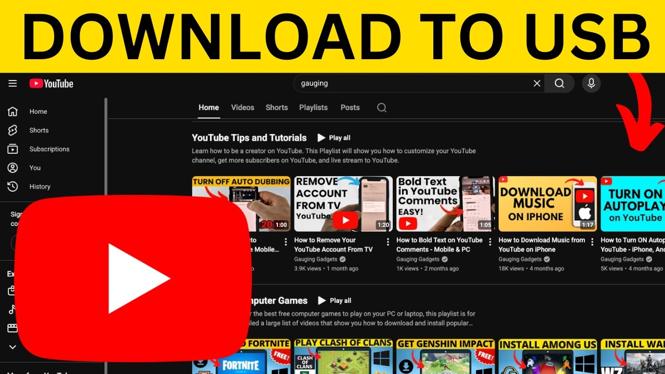
A USB flash drive is useful when you need an approved YouTube video available without an internet connection. The basic job has two parts. First, save a video file to your computer using a download option you are allowed to use. Then copy that file to the USB drive and test it before you unplug it.
Only download videos you own, have permission to save, or that are offered with a legitimate download option. A YouTube Premium offline download is designed for viewing inside the YouTube app, not for creating a video file you can copy to a flash drive. For a transferable file, use a download supplied by the video owner or another authorized source.
Video Tutorial
What you need before you start
You need a computer, a USB flash drive, and access to the video file you are permitted to download. You also need enough free space on both the computer and the drive. Video files can be much larger than expected, especially for longer videos or higher-quality copies.
Check the USB drive’s available storage before copying anything. If the drive is almost full, remove files you no longer need or use another drive. Keep a copy of important files somewhere else before deleting them.
It also helps to know where your computer saves downloads. Many browsers and download services use a folder called Downloads, but the location can be changed. If you cannot find the video later, check the browser’s download list or search your computer for the file name.
Save the authorized video file to your computer
- Open the page or service that provides the video download you are authorized to use.
- Choose the available download option and save the file to a location you can find easily. The Downloads folder is usually a practical choice.
- Wait for the download to finish completely. Do not start copying a file that is still downloading.
- Open the saved file on your computer and play a short section. This confirms that the file works before you transfer it.
If the file does not play, download it again from the authorized source or check that the download completed. Avoid moving a partial file to the USB drive, since it may not play properly on another device.
Copy the video to the USB flash drive
- Insert the USB flash drive into an available USB port on your computer.
- Open your computer’s file manager and locate the downloaded video file.
- Open the USB flash drive in a separate file manager window.
- Copy the video file from its saved location to the USB drive. You can use your system’s copy and paste controls, or drag the file into the drive window.
- Wait until the file transfer is finished. Large video files may take several minutes, so leave the drive connected until the copy is complete.
- Open the copied video directly from the USB flash drive and play a few seconds of it. This is the quickest way to confirm the transfer worked.
Copying is safer than moving for the first transfer. The original stays on your computer if something interrupts the process. Once you have confirmed the USB copy works, you can decide if you still need the computer copy.
Safely remove the USB drive
Do not pull the USB drive out immediately after copying. Your computer may still be finishing background write activity, even if the progress indicator has disappeared. Use your operating system’s option to safely eject or remove the drive first. Wait for the computer to confirm that it is safe, then unplug it.
This small step reduces the chance of a damaged video file or a drive that needs to be repaired. It is particularly important after transferring large files.
Fix common USB video problems
If there is not enough space on the drive, check the video file size and the drive’s remaining capacity. You may need a larger flash drive or may need to remove unneeded files. Do not delete files unless you have checked that they are backed up elsewhere.
If the file will not copy even though the drive appears to have space, the drive’s file format may have a file-size limit. This can affect larger videos. Copy a smaller file as a quick test, then check the drive format and the requirements of the device where you plan to play the video. Reformatting a drive deletes its contents, so back up everything on it before making format changes.
If the video plays on your computer but not on a TV, car system, or another device, the issue is usually video compatibility rather than the USB transfer. Different devices support different video formats and resolutions. Check the playback device documentation for the file types it supports, and use an authorized download format that matches those requirements when one is available.
Keep your videos easy to find
Create a clearly named folder on the USB drive for your video files. You can sort videos by subject, date, or device. Use short, descriptive file names so they are easy to recognize on devices with limited screens.
Before relying on the drive for a trip or offline viewing, test it on the device you plan to use. A quick playback test at home is much easier than troubleshooting when you do not have access to the original file or an internet connection.
More YouTube Tips & Tutorials:
 Subscribe Now! 🙂

Discover more from Gauging Gadgets
Subscribe to get the latest posts sent to your email.