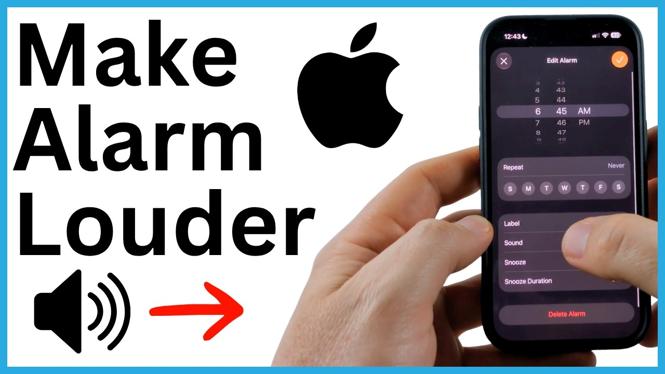
Your alarm uses the Ringtone and Alerts volume
If your iPhone alarm is too quiet, changing the sound for the alarm may not fix it. The alarm volume is controlled by the Ringtone and Alerts volume in Settings. Raise that setting to make the alarm preview, and your scheduled alarm, play louder.
The side volume buttons do not always control this level. They only change your alarm volume when Change with Buttons is turned on. You can raise the setting directly first, then decide if you want the side buttons to control it later.
Video Tutorial
Raise the iPhone alarm volume
- Open your list of alarms and select the alarm you want to check.
- Select Sound. Choose one of the available sounds to hear an example of the current alarm volume.
- Swipe away from the alarm settings and open the Settings app.
- Scroll down and select Sounds & Haptics.
- Find the Ringtone and Alerts volume slider.
- Move the slider to the right to raise the volume. Your iPhone plays a sample as you adjust it, so you can hear the level before setting your alarm.
- Return to the alarm, select Sound again, and choose a sound to confirm that the preview is now louder.
You do not need to create a new alarm for this change. Raising Ringtone and Alerts changes the volume used by the alarm you already have set.
Use the side buttons for alarm volume
On the same Sounds & Haptics screen, you can turn on Change with Buttons. With this setting enabled, using the volume buttons on the side of your iPhone changes the Ringtone and Alerts volume. That means the buttons can also raise or lower the volume your alarm uses.
This is useful if you want to make quick adjustments without going back into Settings. It also means you can accidentally lower the alarm volume when using the side buttons. If you want your alarm volume to stay at the level you selected with the slider, leave Change with Buttons turned off after raising the volume.
Check the alarm before you rely on it
After changing the volume, open an alarm and select Sound. Selecting a sound plays a preview at the current alarm volume. This gives you a simple way to check the setting while you are awake instead of discovering the problem the next morning.
If the preview is still quieter than you want, go back to Settings, open Sounds & Haptics, and move the Ringtone and Alerts slider farther right. Then check the sound preview again.
What to remember
The key setting is not the regular side-button volume by itself. It is the Ringtone and Alerts slider. Set that slider high enough for your room and choose whether Change with Buttons should stay on. Once the preview sounds loud enough, your iPhone alarm will use that louder level when it goes off.
More iPhone Tips & Tutorials:
 Subscribe Now! 🙂

Discover more from Gauging Gadgets
Subscribe to get the latest posts sent to your email.