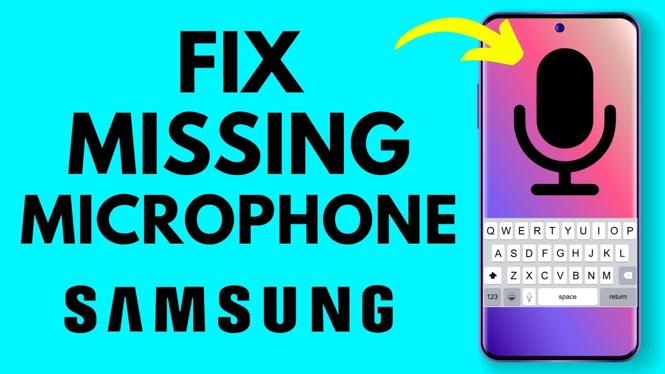
Restore the microphone from Samsung Keyboard settings
If the microphone icon disappeared from your Samsung phone keyboard, select a voice input option in Samsung Keyboard settings. Once Samsung voice input or Google voice typing is selected, the microphone should return to the bottom-left area of the keyboard.
You need to open the keyboard first, because that is where you can access its settings. Tap a text field in an app where you can type, such as a message or search box. Keep the keyboard open while you make the change.
Video Tutorial
Choose a voice input option
- Tap a text field to bring up the Samsung keyboard.
- Look for the small gear icon on the keyboard and select it.
- If you do not see the gear icon, select the three dots on the keyboard instead.
- In the menu that opens, select Settings. This opens Samsung Keyboard settings.
- Scroll down through the settings until you see Voice input near the bottom.
- Select Voice input.
- Choose one of the available voice input options: Samsung voice input or Google voice typing.
- Press the back button until you return to the app and the keyboard appears again.
After selecting either option, check the bottom left of the keyboard. The microphone icon should be available there again. Tap it when you want to use speech to text instead of entering every word manually.
Where to look when the gear icon is missing
The keyboard does not always show every shortcut directly on its main row. If you cannot find the gear icon right away, do not stop at that point. Select the three dots on the keyboard to open its extra menu, then select Settings.
This takes you to the same Samsung Keyboard settings area used to restore the microphone. The important setting is Voice input, not a setting in the app where you are typing. Opening the keyboard first makes sure you are changing the keyboard option.
Samsung voice input or Google voice typing
The Voice input page gives you two choices: Samsung voice input and Google voice typing. You only need to select one option to restore voice input on the Samsung keyboard.
If you want to use Samsung’s option, select Samsung voice input. If you prefer Google’s option, select Google voice typing. The key part of the fix is making a selection on this screen. Once a voice input choice is active, return to your keyboard and look for the microphone icon.
You do not need to stay in the settings screen after choosing your preference. Use the back button to return to the text field where you started. This is the quickest way to confirm that the microphone has returned and is ready to use.
Check that speech to text is working
With the keyboard open, locate the microphone icon at the bottom left. Select it, then speak your message, search, or other text. Your spoken words can be entered through voice input rather than typed one letter at a time.
If the icon was missing before, the main thing to verify is that you selected either Samsung voice input or Google voice typing under Voice input. Go back to that setting if needed, choose an option, then return to the keyboard again.
This setting is useful when you want to dictate a quick text, enter a search by voice, or write a longer message without using the keyboard for every word. The microphone only becomes useful after the keyboard is on screen, so start by tapping a text field whenever you need it.
Quick checklist
- Open a text field so the Samsung keyboard appears.
- Select the gear, or use the three dots and then Settings.
- Open Voice input near the bottom of Samsung Keyboard settings.
- Select Samsung voice input or Google voice typing.
- Use the back button to return to the keyboard.
- Check for the microphone icon in the bottom-left area of the keyboard.
More Samsung Phone Tips & Tutorials:
 Subscribe Now! 🙂

Discover more from Gauging Gadgets
Subscribe to get the latest posts sent to your email.