Save the QR code as a screenshot first
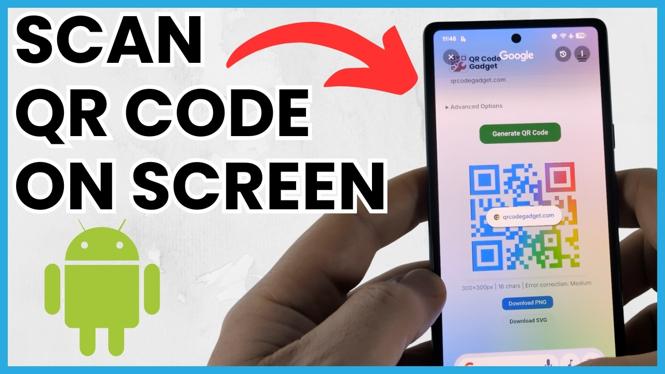
You cannot point your Android phone camera at a QR code that is already displayed on the same phone. The simple fix is to capture the QR code as an image, then scan that image using your phone’s Files app or a browser-based QR decoder.
This works when a QR code appears in an email, text message, website, social post, or another app. Before taking the screenshot, make the code as large and clear as possible. Avoid cutting off any part of the square code.
- Keep the QR code visible on your Android screen.
- Press the Power button and Volume Down button at the same time.
- Wait for the screenshot preview to appear, then let the screenshot save.
Once you have the screenshot, use either method below to read the code.
Video Tutorial
Method 1: Scan the screenshot in the Files app
The Files app can recognize a QR code directly from the saved screenshot. This is the quickest method when the QR scanning icon appears while you view the image.
- Swipe up from your Home screen to open your app list.
- Find and open Files.
- Look in your recent files for the screenshot. If you do not see it there, check Images.
- Select the screenshot containing the QR code.
- Look at the bottom of the screen for the search icon, then select it.
- Tap the QR code when it is recognized.
Your phone should display the QR code’s contents. For example, if it contains a website address, you can see that address before opening it. Check the address carefully, especially if the QR code came from an unfamiliar email, message, or webpage.
If the code contains a web link, selecting the recognized QR code should open its contents. This lets you use a QR code from your screen without sending the image to another phone or trying to scan the display with your camera.
Method 2: Decode the screenshot with QRCodeGadget
If the QR scanning option does not appear in Files, use QRCodeGadget’s QR Code Decoder. This is a free browser tool that decodes the image directly in your phone’s browser. You do not need to upload the screenshot to a server.
- Open your web browser and go to QRCodeGadget.com.
- Select QR Code Decoder.
- Select Choose Image.
- Find the screenshot you saved and select it.
- Select Done.
- Wait for the message QR code decoded successfully.
- Scroll down to view the decoded contents.
The result may be a web address, text, contact information, Wi-Fi details, or another type of QR code data. The decoder shows you what the code contains, which is useful when you want to verify it before doing anything with it.
For a website address, select Copy. Then open a new browser tab, paste the copied address into the address bar, and select Go. This gives you control over the link rather than opening it immediately.
If the QR code will not scan
A failed scan usually means the screenshot is too small, blurry, cropped, or partly covered by another on-screen item. Go back to the app where you found the code and try again.
- Enlarge the QR code before taking a new screenshot.
- Make sure all four corners of the code are visible.
- Remove pop-ups, notification banners, and buttons that cover the code.
- Use the original image when possible instead of a screenshot of a screenshot.
- Try both the Files app method and the QR Code Decoder method.
It also helps to capture only the QR code area if the surrounding page is busy. A clear, high-resolution image gives the decoder the best chance of recognizing the pattern correctly.
Check QR code links before opening them
QR codes can hide their destination until you scan them. When your Android phone shows the decoded result, take a moment to inspect it. A legitimate web address should match the company, service, or person that sent the code.
Do not enter passwords, payment details, or personal information after opening a QR code unless you trust the source and recognize the website address. Reading the code from a screenshot first makes it easier to review the destination before you continue.
With a saved screenshot and either Files or QRCodeGadget, you can scan a QR code that is already on your Android screen without needing a second device.
More Android Tips & Tutorials:
 Subscribe Now! 🙂

Discover more from Gauging Gadgets
Subscribe to get the latest posts sent to your email.