Take a screenshot with the side buttons
The fastest way to take a screenshot on an Android phone is to use the physical buttons. This works by pressing the Volume Down button and the Power side button together, then releasing both buttons right away.
You do not need to hold the buttons down. A quick press and release is the important part. When the screenshot is captured, the screen flashes and a screenshot preview appears in the bottom-left corner of the screen.
- Open the screen you want to capture.
- Press Volume Down and the Power side button at the same time.
- Release both buttons quickly.
- Wait for the screen flash and the screenshot preview in the bottom-left corner.
- Select the preview if you want to open the screenshot right after taking it.
This method is useful when you need to capture something quickly, such as a message, a webpage, an app screen, or an error message. Make sure the content you want is fully visible before pressing the buttons.
Video Tutorial
Use the Accessibility button if the side buttons do not work
If the button combination does not work for you, or the side buttons on your phone are broken, you can set up an on-screen screenshot option through Accessibility settings. The video uses the Assistant menu for this.
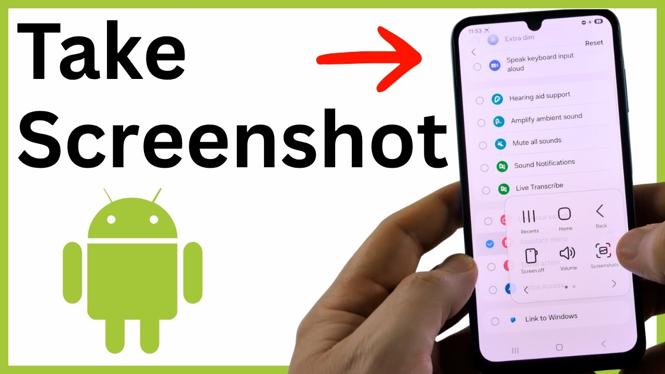
After setup, a small pink Accessibility button stays available on your screen. You can select it, open the four-dot menu, and choose Screenshot from anywhere on your phone.
- Swipe up on your phone and select Settings.
- Scroll down and select Accessibility.
- Select Accessibility shortcuts.
- Select Accessibility button.
- Select Select actions.
- Scroll near the bottom of the list and select Assistant menu.
Once Assistant menu is selected, the small on-screen menu button appears. Select the pink button, then select the four dots in the menu. Choose Screenshot to capture the current screen.
Take screenshots from any screen with Assistant menu
The Accessibility button method is helpful because it does not depend on pressing the phone’s side buttons. As long as the on-screen pink button is available, you can use it while viewing apps, settings pages, messages, and other content.
- Navigate to the screen you want to capture.
- Select the pink Accessibility button.
- Select the four dots.
- Select Screenshot.
Your screen should flash when the capture is successful. Like the button method, a screenshot preview appears in the bottom-left corner. Select that preview to view the screenshot immediately after it is taken.
Fix a screenshot button combination that is not working
If pressing the buttons does not capture the screen, try the combination again with a shorter press. Press Volume Down and the Power side button together, then let go quickly. Holding the buttons too long can prevent you from getting the expected screenshot result.
Also check that you are using the volume down button, not volume up. The required combination shown here is Volume Down plus the Power side button.
If the physical buttons are difficult to press or damaged, set up the Assistant menu instead. That gives you an on-screen way to take screenshots without relying on the side buttons.
Know when the screenshot was captured
A successful screenshot gives you two clear signs: the screen flashes, and a preview appears in the bottom-left corner. The preview lets you select the screenshot straight away after capturing it.
If you do not see either sign, repeat the button combination with a quick press and release. For an alternative that stays accessible on screen, use the Accessibility button and choose Screenshot from the Assistant menu.
More Android Tips & Tutorials:
 Subscribe Now! 🙂

Discover more from Gauging Gadgets
Subscribe to get the latest posts sent to your email.