Start in Safe Mode
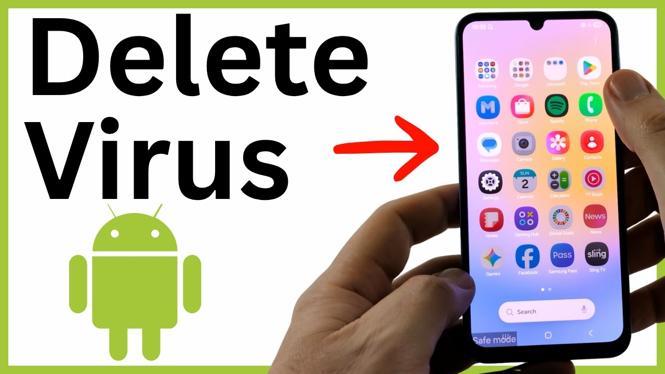
Ads that appear on your Android home screen, lock screen, or app drawer can point to unwanted adware or another suspicious app. Safe Mode is a useful first step because it stops downloaded apps from running while you check the phone.
To enter Safe Mode, first open the power menu. On some phones, hold the power button. If that opens Gemini or another assistant, hold the power button and the volume down button together instead. You can also swipe down from the top right of the screen and select the power icon.
When the power options appear, press and hold Power off, then select Safe mode. Let the phone restart. After it boots, look for Safe mode in a corner of the screen, usually near the bottom. This confirms downloaded apps are currently disabled.
Video Tutorial
Check your default home app
Some unwanted apps change the phone’s launcher, also called the home app. This can cause ads to show up on the home screen or while you view your apps. Check which app Android uses for your home screen before removing suspicious apps.
- Swipe up to open your app list, then open Settings.
- Select Apps.
- Choose Choose default apps.
- Select Home app.
- Review the available home apps. Select the normal system home app for your phone, such as an option labeled Home UI if that is the expected launcher on your device.
If you see a second home app with an unfamiliar name, unusual characters, or numbers, do not select it. A suspicious launcher can be responsible for the ads you are seeing. Setting the correct home app stops that other launcher from taking over your home screen.
Remove apps you do not recognize
Go back to the main Apps page in Settings. Review the installed app list carefully. Look for apps you do not remember installing, apps with odd names, or apps pretending to be a common system app. For example, an app named Gallery with extra symbols or characters should be checked closely.
- Select an app that looks suspicious or unfamiliar.
- Select Uninstall.
- Confirm that you want to remove it.
- Repeat this for every app you do not trust.
There may be more than one unwanted app. Keep reviewing the list rather than stopping after you remove the first one. If you accidentally remove a legitimate app, you can install it again from the Play Store later.
Remove suspicious device admin access
Some apps request device admin access. This gives them extra control over the phone, so it is important to check this area after removing unfamiliar apps.
- Return to the main Settings page.
- Use Settings search and type device admin.
- Select the result under Security, then open Device admin apps.
- Check which apps are turned on.
- Turn off anything suspicious or anything you do not recognize.
An app installed by your workplace may legitimately appear here. If you recognize the app and know why it has admin access, leave it enabled. If the name looks strange or matches an app you already identified as suspicious, turn it off to remove that extra access.
Restart and scan with Play Protect
Once you have checked the launcher, removed suspicious apps, and reviewed device admin access, restart the phone. Open the power menu again and select Restart. The Safe Mode label should disappear after the phone turns back on.
Check the home screen, app list, and apps you normally use. If ads still appear, return to Settings, open Apps, then Choose default apps, and verify that the correct Home app is still selected. A suspicious launcher can sometimes become selected again after leaving Safe Mode.
Next, run the built-in app scan:
- Open the Play Store.
- Select your profile icon in the top right.
- Select Play Protect.
- Select Scan.
Wait for the scan to finish. A result of No harmful apps is a good sign that Play Protect did not detect a harmful installed app. This scan also helps check for anything you may have missed during the manual review.
Use a factory reset only if the problem continues
If you still suspect malware after these checks, a factory reset is the final option shown here. A factory reset deletes the data on your Android phone, so review the reset screen carefully before continuing.
- Open Settings and search for Reset.
- Select the first Reset result.
- Select Reset again.
- Choose Factory data reset.
- Scroll to the bottom, then select Reset.
If your phone has an SD card, remove it before starting the factory reset. The card could contain the source of the problem, and removing it keeps it separate from the freshly reset phone. Afterward, be careful with new app installs and links you open, especially if they come from sources you do not recognize.
More Android Tips & Tutorials:
 Subscribe Now! 🙂

Discover more from Gauging Gadgets
Subscribe to get the latest posts sent to your email.