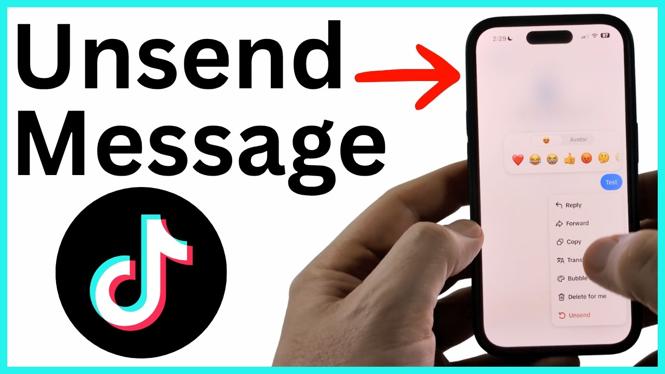
You can unsend a TikTok direct message by opening the chat, long-pressing the message, and choosing Unsend. The option is only available for messages sent within the last hour. When you unsend an eligible message, TikTok deletes it from the chat so the recipient can no longer see it.
This is useful when you send a message to the wrong person, spot a typo after sending, or send something by accident. You need to use the TikTok app and open the same conversation where you sent the message.
Video Tutorial
Unsend a TikTok direct message
Start by finding the conversation that contains the message. You do not need to create a new chat or change an account setting. The Unsend option appears when you press and hold the individual message you sent.
- Open the TikTok app on your iPhone or Android device.
- Select Inbox from the bottom menu.
- Open the chat where you sent the message.
- Find the specific sent message you want to remove.
- Long-press the message.
- Select Unsend.
After you select Unsend, the message is deleted from the conversation for everyone. The person who received it can no longer view that message in the chat.
Check the one-hour time limit first
TikTok only lets you unsend messages that were sent within the last hour. If you sent the message less than an hour ago, long-press it and look for Unsend. Removing it quickly is important if you want to take back an accidental or mistyped DM.
If the message is older than one hour, you cannot unsend it. In that case, the message cannot be removed for the other person using the unsend option. Check the message time before spending time looking through the chat controls.
Unsend removes one message at a time
When you long-press a message, make sure you are pressing the exact message you want to take back. The action applies to that selected message. If you sent multiple incorrect messages, repeat the same process for each eligible one.
Open the chat from Inbox, long-press the next message, then choose Unsend again. Each message must still be within the one-hour sending window to be removed.
If you do not see Unsend
First, confirm that you opened the correct chat and long-pressed the message itself. The option is used on an individual sent message, not from the Inbox list.
Then consider when the message was sent. Messages older than one hour cannot be unsent, so Unsend is not available for them. For a recent message, return to the conversation, press and hold that message, and select Unsend when it appears.
Quick recap
To unsend a message on TikTok, open Inbox, select the conversation, long-press the sent message, and tap Unsend. Do it within one hour of sending the message. Once TikTok removes it, it is deleted from the chat for everyone.
More TikTok Tips & Tutorials:
 Subscribe Now! 🙂

Discover more from Gauging Gadgets
Subscribe to get the latest posts sent to your email.