Check Recently Deleted first
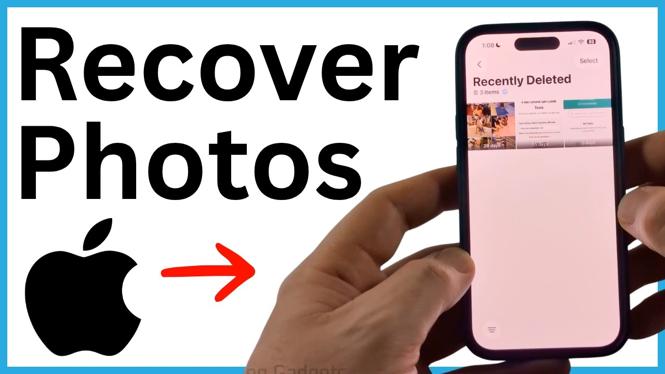
A photo can look permanently deleted when it is no longer in your main library, but it may still be recoverable. Start in the Photos app and check Recently Deleted. This is the quickest method, and it restores the photo directly back to your iPhone.
If the item is no longer in Recently Deleted on your iPhone, there is one more place to check. The photo may still appear in iCloud if it was synced there before it was removed. This is not guaranteed, but it is worth checking before assuming the photo is gone.
Video Tutorial
Recover a photo from Recently Deleted
The Recently Deleted section holds photos and videos that were removed from your library but are still available to restore. You may need to verify your identity before you can open it.
- Open the Photos app on your iPhone.
- Select Collections.
- Scroll all the way to the bottom of the Collections screen.
- Select Recently Deleted.
- Use your passcode or Face ID if your iPhone asks you to unlock the folder.
- Look through the deleted photos and videos for the item you want back.
- Long press the photo or video.
- Select Recover.
After you select Recover, the item returns to your photo library. Open your library and give it a moment if you do not see it immediately.
This is the best recovery option because it happens right in the Photos app. Check carefully before moving on, especially if you deleted several photos at once. The item may be lower in the list than expected.
Check iCloud.com if the photo is not on your iPhone
If you already removed the photo from Recently Deleted on your iPhone, check iCloud in a web browser. There is a small chance the photo was synced to iCloud and has not been deleted there yet.
This method depends on the photo having been available in iCloud before it was deleted. It also depends on iCloud still retaining the image when you check. If iCloud has already removed it too, it will not appear in the web version.
- Swipe up on your iPhone and open a web browser.
- Go to iCloud.com.
- Select Sign In.
- Select Sign In with passcode if that option is available.
- After iCloud loads, scroll down to the Photos section.
- Open Photos to view the images stored in iCloud.
- Look through the photos to see whether the missing image is still there.
- To check deleted iCloud items, select the box in the top-left corner.
- Select Recently Deleted.
- Select the photo or video you want to restore.
- Select Recover.
Give iCloud a little time after recovering the item. When the recovery syncs, open the Photos app on your iPhone and check your library. The recovered photo should appear there because it was restored through iCloud.
What to expect from iCloud recovery
iCloud recovery is not a guaranteed fix for a photo that has been permanently deleted from your iPhone. The important detail is timing. Your iPhone needs to have synced the photo with iCloud, and iCloud must still have a copy available when you check.
That is why you should check iCloud.com as soon as you notice a missing photo. Do not assume the iPhone Photos app and iCloud always show the same result at the exact same moment. Checking both locations gives you the best chance with the methods shown here.
If you find the item in iCloud Recently Deleted, select Recover there rather than deleting or changing anything else. Then wait for the iPhone Photos app to update.
Quick recovery checklist
- Open Photos, then go to Collections.
- Scroll down and open Recently Deleted.
- Long press the photo and select Recover.
- If it is not there, open a browser and visit iCloud.com.
- Sign in, open Photos, and check both the photo library and iCloud Recently Deleted.
- Select the item in iCloud and choose Recover if you find it.
Start with the iPhone Photos app, then check iCloud.com right away if the item is missing. Those two locations are the recovery options shown for restoring photos and videos that may still be retained.
More iPhone Tips & Tutorials:
 Subscribe Now! 🙂

Discover more from Gauging Gadgets
Subscribe to get the latest posts sent to your email.