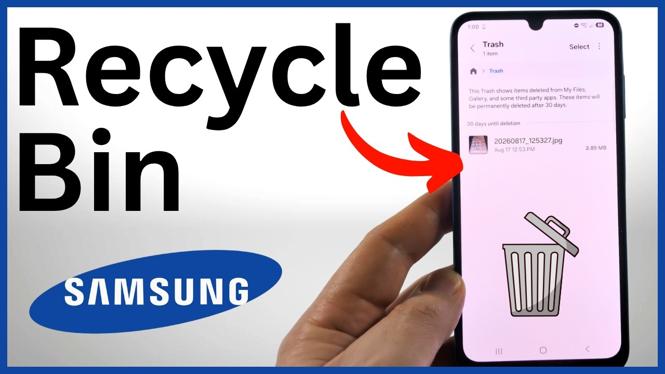
The Recycle Bin on a Samsung phone is called Trash in the My Files app. This is where you can check deleted files and pictures from the last 30 days, including photos deleted from the Gallery app.
If you deleted something by mistake, open Trash as soon as you can. You can select an item and restore it before Samsung removes it after the 30-day period.
Video Tutorial
Find the Recycle Bin in My Files
Samsung does not always label this area as Recycle Bin. In My Files, it is labeled Trash. The My Files icon looks like a yellow folder, and it is often located inside the Samsung folder in your app list.
- Swipe up from your Home screen to open the list of apps.
- Find the Samsung folder, if your phone has one.
- Open My Files, the app with the yellow folder icon.
- Scroll down in My Files until you see Trash.
- Select Trash to open the Samsung Recycle Bin.
You may need to scroll a little before Trash appears. Once you open it, you will see files and pictures that were deleted recently.
What You Can Find in Samsung Trash
The Trash folder holds deleted items for 30 days. This can include files that you removed through My Files, as well as photos deleted from the Gallery app on your Samsung phone.
Check the list carefully if you are looking for a specific item. The folder can contain different types of deleted content, such as pictures, videos, and other files. Since items remain there for a limited time, it is best to look for a missing file before the 30 days are up.
Trash is useful when you accidentally delete a photo while cleaning up Gallery or remove a file you still need. Instead of assuming the item is gone, check My Files first. If it was deleted recently, it may still be listed in Trash.
Restore a Deleted File or Photo
You can restore an item directly from the Trash screen. Select the item you want to recover, then use the restore option.
- Open My Files and select Trash.
- Select Select in the top-right corner.
- Choose the file, picture, or video you want to bring back.
- Select Restore.
After you select Restore, the item is no longer left in Trash. This is the option to use when you deleted something accidentally and want to keep it.
Delete Items From Trash
If you no longer need an item in the Samsung Recycle Bin, you can also remove it from the Trash screen. Start by selecting Select in the top-right corner, choose the item, and then select Delete.
Use the Delete option only for items you are sure you do not need. Trash is the last place to check before a recently deleted file reaches the end of its 30-day storage period.
Quick Check for Missing Samsung Photos and Files
When a photo, video, or file seems to have disappeared, start with the My Files Trash folder. Swipe up, open My Files, scroll to Trash, and review the deleted items.
Remember that the folder only keeps deleted content for the last 30 days. If you find the item, use Select and Restore right away. This lets you recover recently deleted Gallery photos and files without searching through the rest of your phone.
More Samsung Phone Tips & Tutorials:
 Subscribe Now! 🙂

Discover more from Gauging Gadgets
Subscribe to get the latest posts sent to your email.