Switch Safari Back to Regular Tabs
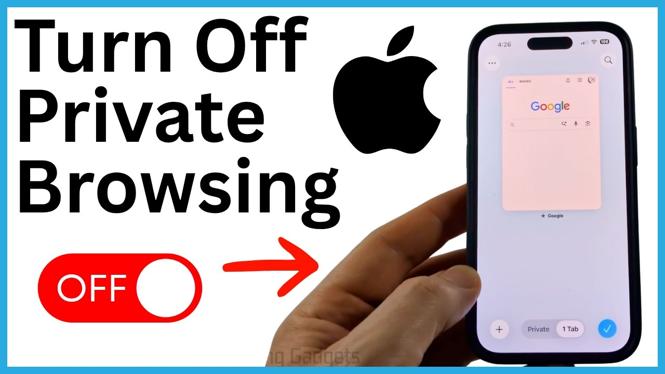
Private Browsing in Safari keeps your private tabs separate from your regular Safari tabs. When you want Safari to return to normal browsing, switch from the Private tab group to the regular tab option. Your regular browsing can then save history, logins, and open pages again.
You can make the change directly in Safari. First, check that you are actually in Private Browsing, then use the address bar controls to select your normal tabs.
Video Tutorial
Check if Safari Is in Private Browsing
Open the Safari app on your iPhone and look at the address bar near the bottom of the screen. The address bar can minimize while you browse, so scroll slightly if you need to make its label easier to see.
If the address bar says Private, Safari is currently using Private Browsing. Pages opened in this section are private tabs rather than your normal Safari tabs.
This is useful to check before changing anything. Safari can have both private and regular tabs available, and the Private label tells you which section you are viewing right now.
Turn Off Private Browsing in Safari
- Open Safari on your iPhone.
- Select the address bar at the bottom of the screen.
- Select the three dots button.
- Choose All Tabs.
- You will see the Private Browsing section. Select the regular tab option instead of the private option.
Safari now switches from Private Browsing to your regular tabs. You can open a new tab and browse normally from this tab section.
What Changes After You Switch
After selecting the regular tab option, you are no longer browsing in Safari’s private section. Safari returns to the normal browsing experience, where your browsing history, logins, and open pages can be saved.
Your private tabs are separate from your regular tabs. Switching to regular tabs does not mean you are viewing the private tab group anymore. If you need to return to it later, use the same Safari tab controls and select the private section again.
If you are unsure which mode Safari is using after the switch, check the address bar once more. The Private label is the quick indicator that you are still in Private Browsing. If that label is no longer shown and you are in your normal tab section, Private Browsing is off for the tabs you are using.
If You Keep Seeing the Private Label
If the address bar still says Private, you are still looking at Safari’s Private Browsing section. Repeat the steps and make sure you select the regular tab option after choosing All Tabs.
Do not just open another page while the address bar says Private. That opens another private page. Switch tab sections first, then open the page you want in your normal Safari tabs.
This process changes the browsing mode you are currently using in Safari. Once you are back in regular tabs, you can continue browsing without using the Private Browsing tab group.
Quick Recap
To turn off Private Browsing on an iPhone, open Safari, select the address bar, tap the three dots, choose All Tabs, and select the regular tab option. Check that the address bar no longer says Private before you continue browsing.
More iPhone Tips & Tutorials:
 Subscribe Now! 🙂
Discover more from Gauging Gadgets
Subscribe to get the latest posts sent to your email.