Turn Off the Warning in Your iPhone Settings
The Sensitive Content Warning can blur or place a warning screen over media that your iPhone flags as sensitive. This can happen with photos and videos in Messages, FaceTime, and Photos. If you no longer want to tap through those warnings, you can disable the feature from your iPhone privacy settings.
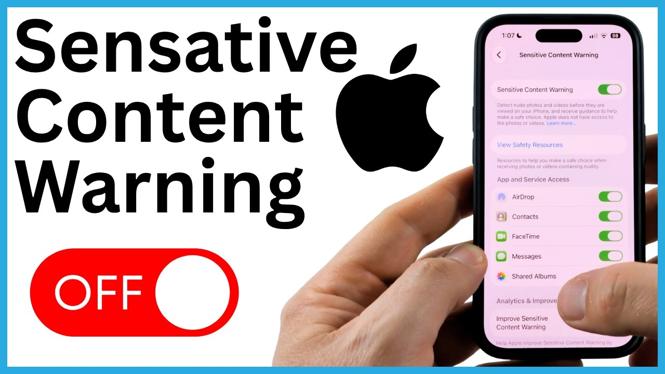
You can switch off Sensitive Content Warning completely, or keep it enabled only for specific areas, such as Shared Albums or FaceTime. The setting is located in Privacy & Security, not inside the individual apps.
Video Tutorial
How to Disable Sensitive Content Warning Completely
- Open the Settings app on your iPhone.
- Scroll down and select Privacy & Security.
- Scroll toward the bottom of the Privacy & Security page.
- Select Sensitive Content Warning.
- Turn off the switch next to Sensitive Content Warning.
Once the main switch is off, your iPhone will no longer use Sensitive Content Warning in the supported places shown on this settings page. You can close Settings when you are done.
After disabling it, media that was previously covered by a blur or warning screen in Messages, FaceTime video messages, or Photos can display normally without requiring you to tap past the warning first.
Keep the Warning On for Only Certain Apps and Features
You do not have to use an all-or-nothing setup. The Sensitive Content Warning page also lets you control where the warning remains active. This is useful if you want to remove warnings from Messages but still use them for content received through another feature.
Leave the main Sensitive Content Warning switch enabled, then scroll down to the list of available options. You can turn individual switches on or off for items including:
- Shared Albums in Photos
- FaceTime
- Messages
- AirDrop
- Contacts
For example, turn off the switch for Messages if you want images and videos in message threads to appear without the Sensitive Content Warning. Keep other switches enabled if you still want warnings in those areas.
The choices on this screen take effect for the specific item you changed. Return here later if you want to adjust your setup again.
What Changes After You Turn It Off
With Sensitive Content Warning disabled, your iPhone stops showing this warning screen for the features covered by the setting. This means you can view flagged photos and videos normally in the apps or features where you turned the option off.
If you use the individual switches instead, only the selected areas change. For instance, you can turn off the warning for FaceTime while leaving it on for Shared Albums. Check each switch carefully before leaving the page so the setting matches how you use your iPhone.
If you see the warning again later, open Settings, go to Privacy & Security, and select Sensitive Content Warning. Confirm that the main switch is off, or verify that the switch for the app or feature you are using is turned off.
Quick Settings Path
Use this path any time you need to change the feature:
Settings > Privacy & Security > Sensitive Content Warning
Turn off the main switch to disable the warning everywhere available on that page. Or leave the main feature enabled and turn off only the switches for Messages, FaceTime, AirDrop, Contacts, or Shared Albums that you do not want filtered.
More iPhone Tutorials:
 Subscribe Now! 🙂

Discover more from Gauging Gadgets
Subscribe to get the latest posts sent to your email.