Turn off the media page on your Samsung home screen
If swiping across your Samsung home screen keeps opening Google, turn off the media page in your home screen settings. This removes the page that appears when you swipe from left to right. It is useful if you open the Google feed by accident while moving between home screen pages.
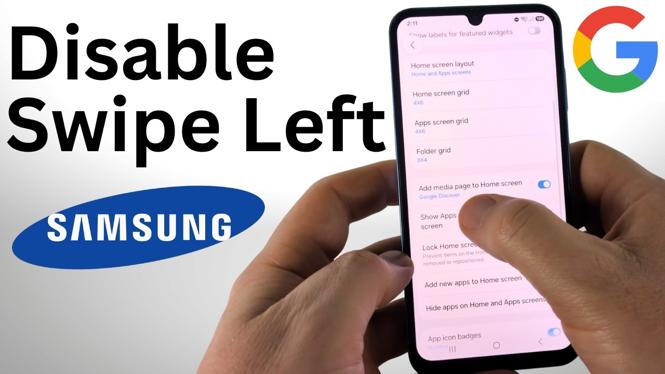
The setting you need is called Add media page to Home screen. When it is off, the Google page is no longer available from the home screen.
Video Tutorial
Disable Google app swipe left on a Samsung phone
You can change this directly from an empty area of the home screen. You do not need to open the Google app to remove its home screen page.
- Go to your Samsung phone’s home screen.
- Press and hold an empty area of the home screen. Avoid pressing an app icon or a widget.
- Select Settings.
- Scroll down until you see Add media page to Home screen.
- Turn off Add media page to Home screen.
- Return to the home screen and swipe from left to right to check the result.
After you turn the setting off, nothing should open when you swipe toward the former Google page. Your regular home screen pages and apps stay in place. You are only removing the extra media page from the home screen.
What the Add media page setting controls
The media page is the panel placed beside your main Samsung home screen. On the phone shown in the video, that panel opens the Google app feed. Google content may be labeled as Google Discover in some places, but the control shown here is still Add media page to Home screen.
Turning the option off does not delete the Google app. It also does not remove your Google account, search history, or other Google services from the phone. It only stops the Google page from appearing as part of the home screen swipe area.
This is a home screen preference, so you can turn it back on later if you decide you want quick access to the feed again.
Choose Samsung News instead of Google
You do not have to remove the media page completely. In the same area, Samsung gives you the option to use Samsung News instead of Google. This changes the content source for that page rather than disabling the page.
Use this option if you still want a news page available from your home screen but do not want the Google app to open. If you want no page at all when you swipe in that direction, leave Add media page to Home screen turned off.
The choice comes down to how you use your home screen. Keeping the media page enabled gives you a quick news feed. Disabling it gives you one less screen to open by mistake.
Check that the change worked
Return to the home screen after changing the setting. Start on your main home screen page, then swipe from left to right, which is the gesture that previously opened Google. With the media page disabled, the Google app page should no longer appear.
If you chose Samsung News instead, that news page should appear in place of Google. If you turned the option off, there should be no media page to open. This quick check confirms that the home screen setting changed the swipe behavior you wanted to stop.
Turn the Google page back on later
If you miss having the feed, repeat the same process. Press and hold an empty area of the home screen, select Settings, then return to Add media page to Home screen. Turn the option back on and select the media page source you prefer.
This makes the change easy to reverse. You can keep Google, switch to Samsung News, or remove the media page entirely based on how you want your Samsung home screen to behave.
More Samsung Phone Tips & Tutorials:
 Subscribe Now! 🙂

Discover more from Gauging Gadgets
Subscribe to get the latest posts sent to your email.