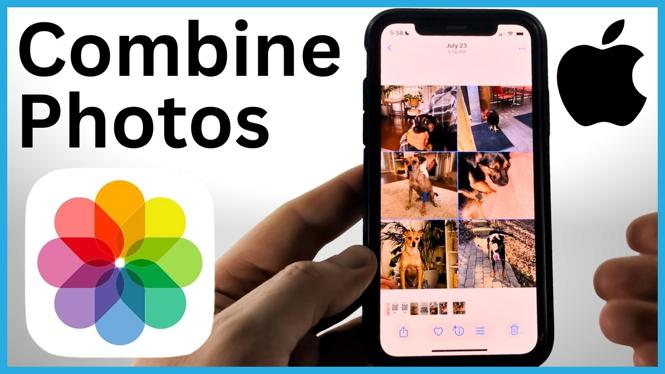
You can combine photos together on your iPhone without installing a collage app. The method shown here uses the free Photo Collage Builder on convertresize.com in your iPhone browser. It lets you put pictures in a grid, a strip, or a custom free-form layout, then save the finished image back to Photos.
The tool works in the browser and is designed to process your photos there rather than uploading them to a server. You can also change the photo order, background, borders, corner rounding, shadows, and canvas size before you download your collage.
Video Tutorial
Choose the photos for your collage
- Open your iPhone browser and go to convertresize.com.
- Select the search bar and type collage.
- Select Photo Collage Builder from the search results.
- Choose File, then select Photo Library.
- Find the pictures you want to combine and select them.
- Select Add to load the selected photos into the collage builder.
Once your images load, you will see a small collage preview near the bottom left of the page. Scroll down to see a larger view of the full collage. This preview updates as you make changes, so you can check the arrangement before saving anything.
Put the photos in the right order
The order in which you add photos affects where they appear in the combined image. To move a picture, long press it and drag it to a different position. Release it when it is where you want it.
If you want a quick alternative arrangement, use the Shuffle Images option. This changes the photo order automatically. It can be useful when you have several images and want to compare a few layouts before manually fine-tuning the result.
Pick a layout for combined photos
Scroll to the layout settings and choose the arrangement that fits your images. The available choices shown in the tool are:
- Grid, for a standard photo collage with pictures arranged in rows and columns.
- Horizontal Strip, for placing photos across a wide image.
- Vertical Strip, for stacking photos in a tall image.
- Free Form, for a more customized collage.
For a simple side-by-side photo or a clean multi-photo collage, Grid is usually the easiest choice. If you choose Free Form, you can drag and drop the photos yourself. You can also pinch and zoom to adjust their size and change their angle. This gives you more control when you want photos to overlap or sit at different sizes.
Customize the collage style
After selecting a layout, use the style settings to change how the combined photo looks. Start with the background color. The selected color fills the area behind your images and also becomes visible around the outside if your collage has an outer border.
You can set the border to use a gradient instead of one solid color. For example, the Radial gradient starts from the center. You can then choose the gradient color to create a different look around the photos.
The builder also lets you add borders around the individual images. Choose a custom border color if you want each photo to stand apart from the others. Adjust the rounded corners to soften the edges of the pictures. You can make the rounding subtle or more noticeable, depending on the style you want.
If your photos need more separation from the background, add a shadow around them. A shadow can make individual images easier to see, especially when the photo colors are close to the background color.
Set the canvas size before saving
Use the canvas size options when you need the collage to fit a particular destination. You can choose a custom size or select one of the available presets, including options for IG, TikTok, Pinterest, and HD.
Changing the canvas size updates the collage preview. Check that your photos still fit well after switching sizes. If needed, return to the layout or free-form controls and reposition the images before downloading.
Download and save the collage to Photos
- When the collage looks right, scroll to the download options.
- Choose your preferred file format. JPEG works for most uses. Select PNG if preserving image quality is your priority.
- Select Download Collage.
- To download the image as a file, select Download.
- To add it directly to your iPhone camera roll, select View.
- Long press the finished image, then select Save to Photos.
Open the Photos app after saving. Your combined image should appear as the most recent photo. From there, you can share it, send it in a message, or use it anywhere you normally use photos on your iPhone.
More iPhone Tips & Tutorials:
 Subscribe Now! 🙂

Discover more from Gauging Gadgets
Subscribe to get the latest posts sent to your email.