How to Fix HP Laptop Black Screen But Turns On
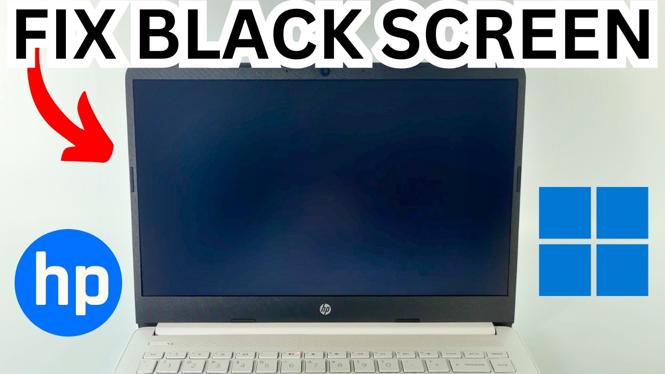
If you own an HP laptop, you might encounter the frustrating problem of a black screen despite the laptop powering on. This issue can happen with various models, including the HP Pavilion, HP Envy, HP Spectre, and HP Omen, especially those running Windows 11. Fortunately, resolving this problem is often simpler than you might expect. In this comprehensive guide, we’ll explore effective troubleshooting steps and solutions to restore your laptop’s display without incurring any repair costs. Read on to learn how to fix your HP laptop black screen problem effectively.
Video Tutorial
Why You Might Be Looking for This Tutorial
Experiencing a black screen on your HP laptop can be a significant inconvenience, especially if you rely on your device for work or study. You may be looking for this tutorial because:
- Your HP laptop is turning on, but the display remains black.
- You are unsure about the underlying cause of the black screen issue.
- You want to troubleshoot the problem without professional assistance.
- You are familiar with basic computer operations but need step-by-step guidance.
- You want to save on repair costs by fixing the problem yourself.
Steps to Fix HP Laptop Black Screen Issue
Follow these steps to troubleshoot and potentially fix the black screen issue on your HP laptop:
1. Check Power Supply and Connections
Ensure that your laptop is receiving power. Check the power adapter, charging cable, and power outlet. If the battery is removable, take it out and then reconnect it after a few seconds.
2. Perform a Hard Reset
Disconnect any peripherals and power plug, then press and hold the power button for about 15 seconds. This will drain any residual power and may resolve the issue.
3. Connect an External Display
Use an HDMI or VGA cable to connect your laptop to an external monitor. If the external display works, the issue may lie with your laptop’s screen or display settings.
4. Boot into Safe Mode
Restart your laptop and press the F8 key repeatedly until the Advanced Boot Options menu appears. Select ‘Safe Mode’ to check if the display works. If it does, the problem may be related to drivers or settings.
5. Update Graphics Drivers
If you can access Safe Mode, navigate to Device Manager. Expand the ‘Display adapters’ section and right-click your graphics driver to update it. An outdated or corrupt driver could cause a black screen.
6. Check Display Settings
Right-click on the desktop and select ‘Display settings.’ Ensure that the display isn’t set to an external monitor or that the brightness isn’t turned all the way down.
7. Run HP Hardware Diagnostics
Restart your laptop and press the Esc key to access the Startup Menu. From there, choose ‘F2’ to run hardware diagnostics. This tool can help identify any hardware issues affecting your display.
8. Reset Windows 11
If none of the above steps worked, you may need to consider resetting Windows 11. Go to ‘Settings,’ then ‘Update & Security.’ Click on ‘Recovery,’ and follow the prompts to reset your PC while keeping your files intact.
Final Thoughts
Encountering a black screen issue on your HP laptop can be troubling, but with the right steps, you can troubleshoot and potentially resolve the problem on your own. By following the guide above, you can save time and avoid repair costs while getting your laptop back in working order. If all else fails, seeking professional assistance could be the next best step to ensure your device is well taken care of.
More Windows 11 Tips & Tutorials:
 Subscribe Now! 🙂

Discover more from Gauging Gadgets
Subscribe to get the latest posts sent to your email.