Check for a carrier outage first
The Not Registered on Network message usually points to a problem with your cellular carrier, not necessarily a problem with the Samsung Galaxy phone itself. A carrier such as AT&T, T-Mobile, or Verizon can have a wider outage. The cell tower your phone uses can also have an issue.
Before changing settings on your phone, check your carrier’s service status page for outages in your area. If the carrier reports an outage, the phone may continue showing this error until that service issue is fixed. If there is no reported outage, work through the phone troubleshooting steps below.
Video Tutorial
Restart your Samsung Galaxy phone
A restart is the first thing to try when your phone says it is not registered on network. Restarting forces the phone to reconnect to the cellular network and can clear a temporary connection problem.
- Swipe down from the top-right area of the screen.
- Tap the Power button in the menu that appears.
- Select Restart.
Let the phone restart fully. If the error is gone afterward, no other changes are needed. If it remains, check the SIM card next.
Remove and inspect the SIM card
Your SIM card connects your phone and your carrier account. If it is dirty, wet, or not seated correctly, your Samsung phone may not be able to register on the network.
Remove the SIM card from the phone and inspect it before putting it back. Look for dirt or any water around the card. Reinsert the SIM card once it is clean and dry, then reboot the phone again. This gives the phone another chance to detect the SIM and register with your carrier.
If the message still appears after restarting with the SIM card reinserted, reset the mobile network settings. This is the last troubleshooting step shown here.
Reset mobile network settings
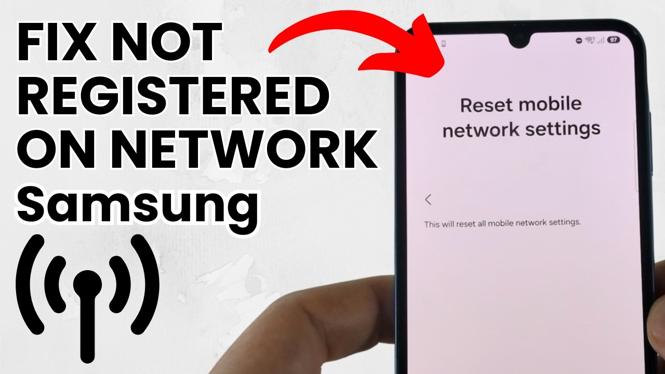
Resetting mobile network settings removes the current mobile network configuration and lets your Samsung Galaxy phone set it up again. This can fix a configuration issue that is preventing the phone from registering on the network.
Be careful before confirming this reset. You cannot undo it. If your network requires special information to connect, you will need to enter that information again afterward. For a standard SIM card connection, this usually should not cause a problem.
- Swipe up on the Home screen to open your apps.
- Find and select Settings.
- Scroll down and select General management.
- Scroll down and select Reset.
- Scroll down and choose Reset mobile network settings.
- Select Reset settings.
- Unlock your phone if prompted.
- Confirm that you want to reset the mobile network settings.
What to expect after the reset
After you confirm the reset, your phone removes its existing mobile network settings. Give it a moment to reconnect using the SIM card. If the original issue came from a temporary network configuration problem, this reset can restore the cellular connection for calls and mobile data.
Remember that resetting mobile network settings does not solve a carrier outage. If your carrier is still having service trouble, wait for that issue to be resolved. Also, if your network uses special connection details, enter them again after the reset so the phone can reconnect properly.
Use these steps in order
Start by checking for a carrier outage. Then restart the Samsung phone, inspect and reinsert the SIM card, and reset mobile network settings only if the first steps do not fix the error. This order avoids resetting settings when the cause is simply a temporary carrier or tower issue.
These steps apply to Samsung Galaxy S25, Galaxy S24, and other Samsung Galaxy phones that show the Not Registered on Network message. They focus on the connection checks and settings available on the phone without changing unrelated settings.
More Samsung Phone Tips & Tutorials:
 Subscribe Now! 🙂

Discover more from Gauging Gadgets
Subscribe to get the latest posts sent to your email.