Scan the QR code instead of typing with the remote
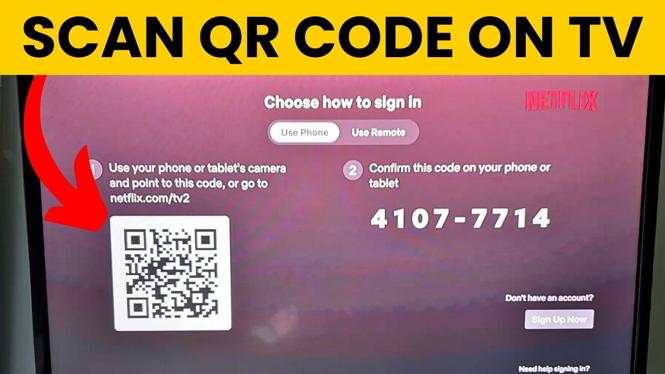
When Netflix shows a QR code on your TV, you can use your phone to sign in without entering your email address and password with the remote. Open your phone camera, scan the code on the TV, then complete the Netflix sign-in on your phone. Once you finish, Netflix should sign in on the TV automatically.
Keep the QR code visible on the TV while you complete the process. You will need a phone with a camera and access to the Netflix account you want to use.
Video Tutorial
How to scan a Netflix QR code on your TV
- Open the Camera app on your phone.
- Point the camera at the Netflix QR code displayed on your TV.
- Wait for your phone to recognize the code. A small yellow bubble should appear on the screen.
- Select the yellow bubble to open the link connected to the QR code.
- Follow the page that opens on your phone. If Netflix shows you a code, select Continue.
- Sign in to your Netflix account on your phone.
- Check the TV after you sign in. Netflix should now be available on the TV under that account.
This method moves the account sign-in to your phone, where it is much easier to type. You do not need to enter your Netflix credentials one character at a time with the TV remote.
What the yellow bubble does
The yellow bubble is your phone’s camera result for the QR code. It is the prompt that lets you open the web page stored in the code. Select it rather than taking a photo of the screen.
After you open the result, your phone may show a page with additional instructions or codes before the Netflix sign-in page. Select Continue when that option appears, then sign in to the Netflix account you want on the TV.
Do not close the page immediately after submitting your sign-in details. Give the TV a moment to update. The Netflix screen on the TV should change once the account connection is complete.
If your phone camera does not scan the code
Try positioning your phone so the entire QR code is visible in the camera view. Hold the phone steady and give the camera a few seconds to focus. Moving too close to the TV can make the code blurry, so pull the phone back slightly if the camera cannot recognize it.
If the regular Camera app still does not detect the Netflix QR code, use the QR code scanner at QRcodegadget.com.
- Open QRcodegadget.com on your phone.
- Select QR Code Scanner.
- Allow the scanner to access your phone camera when prompted.
- Point your phone at the QR code on the TV.
- Wait for the scanner to find the QR code.
- Copy the result, then open the link from there.
- Continue through the Netflix page and sign in to your account.
The scanner should identify the link from the QR code automatically. Once you open that link, the remaining steps are the same: continue if prompted, sign in to Netflix, and wait for the TV to update.
Check that Netflix signed in on the right TV
After completing the sign-in on your phone, look back at the TV screen. Netflix should load using the account you entered on the phone. At that point, you can use the TV remote normally to browse and start watching.
If the TV does not update right away, make sure you completed the sign-in after opening the QR code link. Also make sure the QR code screen is still open on the TV while you finish the phone steps. If needed, scan the code again and repeat the process from the Camera app.
Quick checklist
- The Netflix QR code is visible on the TV.
- Your phone camera can see the full code clearly.
- You selected the yellow camera result bubble.
- You opened the QR code link on your phone.
- You selected Continue if a code screen appeared.
- You signed in to the intended Netflix account.
- You waited for the TV to refresh after signing in.
Scanning the Netflix QR code is the faster option whenever the sign-in screen offers it. Your phone handles the account login, and the TV receives the completed sign-in without requiring you to type your details with the remote.
More Netflix tips & tutorials:
 Subscribe Now! 🙂

Discover more from Gauging Gadgets
Subscribe to get the latest posts sent to your email.