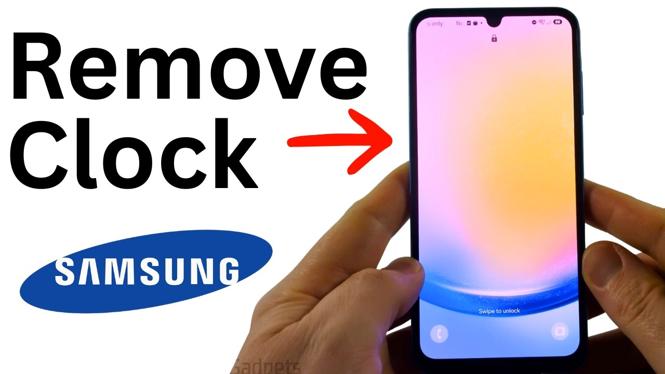
Hide the Lock Screen Clock on Your Samsung Phone
You can make the lock screen clock disappear by editing its color and transparency. This does not require an extra app. Samsung lets you edit the clock directly from the lock screen, then set it to black with zero percent transparency.
The clock is still part of your selected lock screen layout, but it becomes invisible. This gives you a cleaner lock screen without changing your wallpaper or removing other lock screen items.
Video Tutorial
Steps to Remove the Lock Screen Clock
- Press the button on your Samsung phone so the lock screen appears.
- Tap and hold a blank area of the lock screen. Avoid tapping the clock itself at first.
- When you see Unlock to edit lock screen, unlock your phone.
- Select the clock on the lock screen editing screen.
- Open Colors.
- Select the color option all the way to the right. It has a small white circle on the right side.
- Select Black.
- Locate the Transparency setting and move it all the way to 0%.
- Select Done. The clock should disappear from the preview.
- Select Done again to save the edited lock screen.
Why the Clock Disappears
Samsung’s lock screen editor lets you change both the clock color and its transparency. Setting the clock to black alone may not hide it, especially if your wallpaper has bright or light areas. Reducing transparency to 0% is the important part. At that setting, the clock no longer shows on the lock screen.
This approach lets you keep the same lock screen setup while hiding only the clock. Your wallpaper, notifications, shortcuts, and other items can stay as they are unless you choose to edit them separately.
If You Cannot See the Editing Screen
Start from the actual lock screen, not from the home screen. Press the phone button so the lock screen is visible, then touch and hold an empty spot. Your phone will ask you to unlock it before it opens the lock screen editor.
If the clock selection options are not visible right away, make sure you select the clock after unlocking. The color choices and transparency control appear while you are editing the clock, not before.
Also make sure you save the change. After the clock vanishes in the preview, select Done to apply it. Leaving the editor without saving can keep the previous clock settings on your lock screen.
Make the Clock Visible Again Later
You can restore the clock through the same lock screen editing process. Tap and hold a blank area of the lock screen, unlock your phone, and select the clock. Then open Colors and adjust the transparency above 0%. Select Done to save the change.
You can also choose a different clock color during this step. A higher transparency setting makes the clock visible again, while the selected color controls how it looks against your wallpaper.
What This Method Changes
These steps change the appearance of the clock on your Samsung lock screen. The clock is hidden by making it fully transparent, rather than being removed as a separate system feature. That distinction matters if you later want the clock back. You can return to the editor and reverse the transparency setting instead of rebuilding your lock screen.
This method applies to Samsung Galaxy phones using the lock screen editor shown here, including Galaxy S25, Galaxy S24, A series, Z Flip, and Z Fold models running One UI. The wording or available clock designs can vary by phone and One UI version, but the demonstrated edit uses the clock’s Colors settings and the Transparency control.
More Samsung Phone Tips & Tutorials:
 Subscribe Now! 🙂

Discover more from Gauging Gadgets
Subscribe to get the latest posts sent to your email.