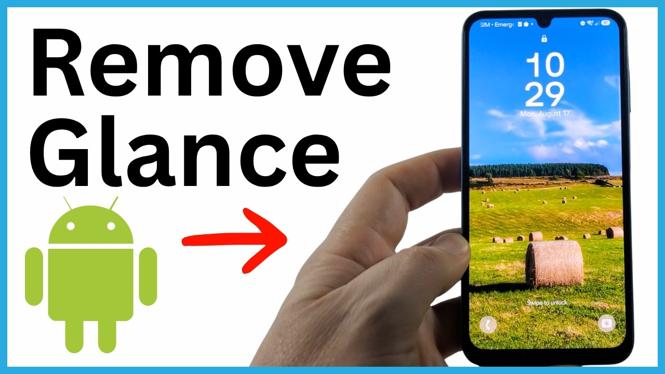
If your Android lock screen wallpaper changes each time you lock the phone, Glance is likely set as the wallpaper service. You can remove Glance from the lock screen by changing the wallpaper service to None. This stops the rotating Glance wallpapers, ads, and news stories and returns your phone to a regular static lock screen.
The menu layout can vary by phone and Android version. On the Samsung phone shown here, Wallpaper services is inside the wallpaper settings. On another device, it may appear directly on the main Wallpaper and style screen.
Video Tutorial
Turn Off Glance in Wallpaper Settings
You do not need to install another app or choose a new wallpaper to stop Glance. The important setting is the wallpaper service. Set that service to None, then apply the change.
- Unlock your Android phone.
- Swipe up to open the app drawer.
- Find and open the Settings app.
- Scroll down and select Wallpaper and style.
- Select Change wallpapers.
- Scroll to the bottom of the screen and select Wallpaper services.
- Select None.
- Select Apply to save the setting.
After you apply it, lock your phone and turn the screen back on. The lock screen should keep the same background instead of loading a different Glance image each time.
If You Do Not See Change Wallpapers
Android manufacturers can arrange wallpaper controls differently. The exact screen in the video shows Wallpaper services under Change wallpapers, but your phone may show Wallpaper services directly after you select Wallpaper and style.
Start in Settings, open Wallpaper and style, and look through that screen for Wallpaper services. Once you find it, the setting to use is still None, followed by Apply.
Do not confuse the wallpaper image picker with the wallpaper service setting. Picking a photo can change your lock screen background, but it may not disable the service that rotates Glance content. Selecting None under Wallpaper services is the part that turns Glance off.
What Changes After You Remove Glance
Glance can place changing wallpapers and content on the lock screen. Once the wallpaper service is set to None, your lock screen uses a normal background instead. You should no longer see a new Glance wallpaper whenever you lock the phone.
This change affects the lock screen service, not your personal files or installed apps. Your photos, messages, and other phone data stay in place. You can still choose a wallpaper you like through the wallpaper options in Wallpaper and style.
Check That Glance Is Disabled
Use this quick check after changing the setting:
- Press the power button to lock the phone.
- Wait a few seconds.
- Turn the screen on again without unlocking it.
- Confirm that the background remains the same and Glance content does not appear.
If the lock screen still changes, return to Settings and check Wallpaper services again. Make sure None is selected and that you chose Apply. The Apply step saves the selection, so skipping it can leave the previous wallpaper service active.
Use a Regular Lock Screen Wallpaper
After disabling Glance, you can leave the current background as it is or set a different wallpaper. Go back to Settings and open Wallpaper and style. From there, use the available wallpaper choices to select the background you want.
The key difference is that a regular wallpaper stays put. With Wallpaper services set to None, Glance no longer controls the images or stories that appear when your phone is locked.
More Android Tips & Tutorials:
 Subscribe Now! 🙂

Discover more from Gauging Gadgets
Subscribe to get the latest posts sent to your email.