Turn on the NVIDIA overlay first
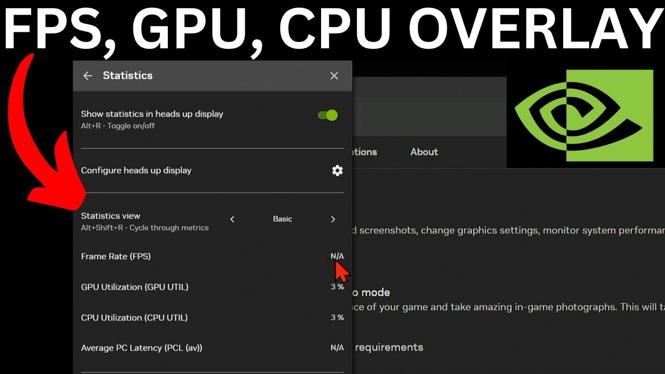
The NVIDIA App performance overlay can show your FPS, GPU usage, GPU temperature, and CPU usage while you play. You need to enable the NVIDIA overlay in the app, then turn on its statistics panel.
The FPS value may show N.A. while you are on the Windows desktop. That is normal because no game is running. If it stays at N.A. after you open a game, use the troubleshooting steps later in this guide.
Video Tutorial
Enable the NVIDIA App performance overlay
- Go to the Windows taskbar and expand the hidden icons area.
- Right-click the NVIDIA App icon and select NVIDIA App.
- When the app opens, select Settings from the left menu.
- Find NVIDIA overlay and turn the toggle on.
- Wait a moment for the overlay to enable.
With the overlay enabled, press Alt + Z on your keyboard. This opens the NVIDIA overlay settings screen. You can use this shortcut while in a game as well.
Show FPS, GPU, and CPU usage
The statistics screen controls the on-screen performance information. It is where you turn on the counter that appears during gameplay.
- Press Alt + Z to open the NVIDIA overlay.
- Select Statistics at the bottom of the overlay settings.
- Turn on Statistics.
- Check the top-right corner of the screen for the performance display.
You should now see your FPS along with GPU and CPU usage. The overlay can also show your GPU temperature. Use the available views in the Statistics area to filter through the information and see additional performance details.
This is useful when a game feels slow or inconsistent. A low FPS reading confirms a frame rate drop. High GPU temperature can point to a cooling issue. Comparing CPU and GPU usage can also help you identify which part of the PC may be limiting performance.
Change the overlay position and appearance
If the counter is covering part of your game, you can adjust how it looks. Open the overlay again with Alt + Z, then go to Heads up display.
Use the settings there to configure the statistics display. This lets you edit the look of the on-screen information so it is easier to read without blocking an important part of the game.
After making your changes, launch or return to your game and confirm that the counter is visible where you want it. The overlay stays available as long as NVIDIA overlay remains enabled in the NVIDIA App.
Fix FPS showing N.A. in a game
Seeing N.A. for FPS outside a game is expected. If you are actively playing and the FPS field still shows N.A., add that game to the NVIDIA Control Panel program settings. This associates the game with your NVIDIA graphics card settings.
- Close the Statistics panel and the NVIDIA App.
- Expand the hidden icons area on the Windows taskbar.
- Right-click the NVIDIA App icon and select Control Panel.
- In NVIDIA Control Panel, select Manage 3D settings.
- Select the Program Settings tab.
- Select Add.
- If your game appears in the list, select it and choose Add.
- If it does not appear, select Add and look for it in the recently used apps list. You can also select Browse, locate the game’s EXE file, and select Open.
- Select Add selected program.
- Reboot your computer.
Start the game again after the reboot. Open the statistics overlay with Alt + Z and check the FPS value. It should now display the game’s frame rate instead of N.A.
Quick checks if the counter does not appear
First, confirm that NVIDIA overlay is still turned on in the NVIDIA App settings. Then press Alt + Z, open Statistics, and make sure the Statistics toggle is enabled.
If you can open the overlay but do not see FPS during gameplay, check whether the game was added under Manage 3D settings and Program Settings. Reboot after adding the game, then test it again. These checks cover the setup needed to view FPS, GPU usage, GPU temperature, and CPU usage while gaming.
More NVIDIA Tips & Tutorials:
 Subscribe Now! 🙂

Discover more from Gauging Gadgets
Subscribe to get the latest posts sent to your email.