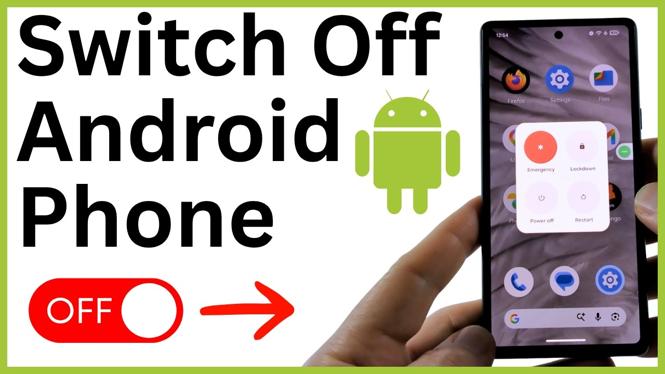
You can switch off most Android phones from the power button, the Quick Settings panel, or the Accessibility Menu. This is useful when you need to restart a phone, save battery, or shut down a device with a broken power button.
The steps below apply to Pixel, Motorola, OnePlus, and many other Android phones. Samsung phones use different steps, so use a Samsung-specific guide if you have a Galaxy phone.
Video Tutorial
Use the power button
The quickest way to turn off an Android phone is usually to hold its power button. Find the single button on the side of the phone. Do not use the volume rocker, which is the longer button or pair of buttons used to change volume.
- Press and hold the phone’s Power button.
- Wait for the power menu to appear.
- Select Power off.
- Wait while the phone shuts down.
On some Android phones, holding the power button may open Google Gemini or Google Assistant instead of immediately showing the power menu. You can still use this method. While the assistant is open, say turn off phone. The power menu should then appear.
- Hold the Power button until Gemini or Google Assistant opens.
- Say turn off phone.
- Select Power off from the power menu.
If holding the power button already opens a menu with Power off, you do not need to use the voice command. Just select Power off to shut down the device.
Switch off Android from Quick Settings
You can also open the power menu from Quick Settings. This option is helpful if you do not want to use the side button or if the button does not work properly.
- Swipe down from the center of the top of your screen.
- Swipe down again to fully expand Quick Settings.
- Find the small Power icon in the bottom-right corner.
- Select the Power icon.
- Select Power off when the power menu opens.
Your Android phone will begin shutting down after you select Power off. If you only pulled down notifications on the first swipe, the power icon may not be visible yet. Swipe down a second time to open the full Quick Settings panel.
Turn off your phone with Accessibility Menu
If both the power button and Quick Settings method are unavailable, turn on Accessibility Menu. This adds a green shortcut icon to your screen. You can use that icon to reach power controls without relying on the physical button.
- Open the Settings app on your Android phone.
- Scroll down and select Accessibility.
- Scroll down again and select Accessibility Menu.
- Turn on the Accessibility Menu toggle.
- Select the green Accessibility Menu icon that appears on your screen.
- Select Power.
- Select Power off.
The green Accessibility Menu icon remains on the screen after you enable it, including after you close Settings. This gives you a quick way to access power controls later. If you only needed it temporarily, return to Accessibility Menu in Settings and turn the toggle off after using it.
Which shutdown method should you use?
Use the power button when it works and brings up the power menu. It is usually the fastest option. Use Quick Settings when you prefer an on-screen control or your physical power button is unreliable. Use Accessibility Menu when you need a persistent on-screen shortcut for power controls.
All three methods end at the same place: the power menu. Select Power off there to fully switch off your Android phone. If you only need to refresh the phone, look for a restart option in that same menu instead of shutting it down completely.
If the power menu does not appear
Try the Quick Settings method first, since it does not depend on holding the side button. If you can open Settings but cannot use Quick Settings, enable Accessibility Menu and use its Power option. If holding the power button opens Gemini or Google Assistant, say turn off phone to bring up the shutdown controls.
Menu placement can vary slightly between Android devices and software versions, but the demonstrated options are Power off, the Quick Settings Power icon, and Accessibility Menu. These options let you safely turn off the phone when you need to conserve power or prepare it for a restart.
More Android Tips & Tutorials:
 Subscribe Now! 🙂

Discover more from Gauging Gadgets
Subscribe to get the latest posts sent to your email.