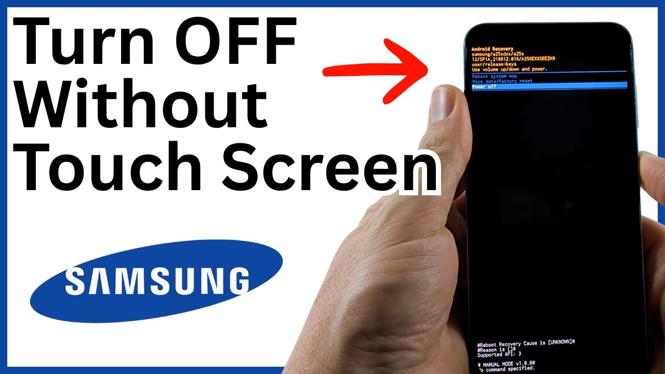
Turn Off Your Samsung Phone When Touch Is Not Working
If your Samsung phone has a cracked display, a frozen screen, or no touch response at all, you can still turn it off with the physical buttons. The process opens the Android recovery screen, where the volume buttons let you move through options and the side or power button confirms your selection.
For newer Samsung phones, connect the phone to a computer first. The computer needs to be powered on, but you do not need to use the computer after connecting the phone. If you have an older Samsung phone, you can skip the computer connection.
This method is useful when you cannot use the normal on-screen power menu. It also works if the display is black, as long as you can follow the button sequence and notice the phone vibrations.
Video Tutorial
What You Need Before You Start
You only need your Samsung phone and access to its physical buttons. Find the side or power button and the volume buttons before starting. You will need to hold the side or power button throughout the button switch in the middle of the process.
If you are using a newer Samsung phone, have a computer nearby and turn it on. Plug your phone into the computer. You are not transferring files, opening software, or changing anything on the computer. The connection is only needed before you begin the button sequence.
Older Samsung phones may not need this connection. If your phone is older, continue directly to the button steps below.
Open the Android Recovery Screen With the Buttons
The key part is switching from Volume Down to Volume Up immediately after the screen turns off. Keep holding the side or power button while you make that switch.
- On a newer Samsung phone, connect the phone to a powered-on computer.
- Press and hold the side or power button and the Volume Down button at the same time.
- Continue holding both buttons until the phone screen turns off.
- As soon as the screen turns off, release Volume Down and press and hold Volume Up instead.
- Keep holding the side or power button and Volume Up button.
- Wait for the Android recovery screen to appear.
Do not stop holding the buttons too early. The phone may vibrate during this process. If your display does not work at all, those vibrations can help confirm that the phone is responding while it enters the recovery screen.
Select Power Off Without Using Touch
Android recovery does not require the touchscreen for this part. Use the physical volume buttons to move through the list of options on the screen.
- Press Volume Down until Power off is selected.
- Press the side or power button once to choose Power off.
- Wait for the phone to shut down.
After the phone is off, you can unplug it from the computer if you connected it. Your Samsung phone is now powered down without needing the touchscreen.
If the Display Is Completely Black
You may not be able to see when the display turns off or when the Android recovery screen appears. Follow the same button order carefully: hold the side or power button with Volume Down, then switch to Volume Up as soon as the screen should turn off. Keep holding the side or power button during the switch.
Listen and feel for vibrations. The phone can vibrate a couple of times while entering the recovery screen. This gives you a useful signal when the display is unavailable. Once you believe the recovery menu is open, use the volume buttons to move down to Power off, then use the side or power button to select it.
Why the Computer Connection Matters on Newer Phones
The computer connection is part of the process for newer Samsung phones shown here. You do not need to interact with anything on the computer. Just make sure it is on and that your Samsung phone is connected before holding the button combination.
If you try the button sequence on a newer model without that connection, connect the phone to a powered-on computer and repeat the steps. For older Samsung phones, start with the physical button combination and proceed to the Android recovery screen.
Button Sequence to Remember
Use side or power button + Volume Down first. When the screen turns off, keep holding the side or power button and switch from Volume Down to Volume Up. In Android recovery, use the volume buttons to highlight Power off and use the side or power button to confirm it.
More Samsung Phone Tips & Tutorials:
 Subscribe Now! 🙂

Discover more from Gauging Gadgets
Subscribe to get the latest posts sent to your email.