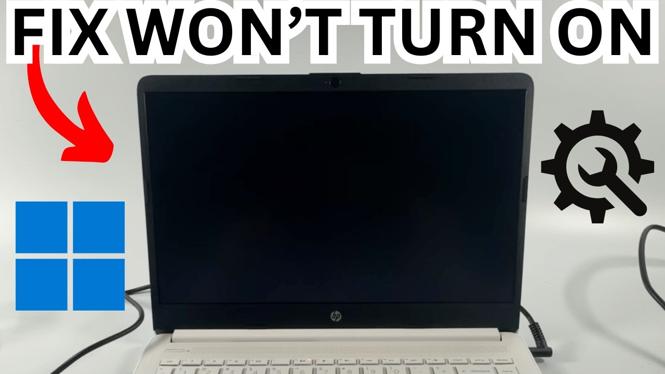
If your laptop will not turn on or charge, start with the power connection and give a fully drained battery time to recover. A laptop that has been unplugged for a long time may not start immediately after you connect the charger, even when the charger is working.
First, plug the laptop into its charger and look for its power or charging indicator light. That light helps confirm the laptop is receiving power. If you see it, leave the laptop connected for 30 minutes to one hour before trying to turn it on again. When a battery is extremely low, the laptop may need time to build up enough charge to start.
If it still does not start after charging, disconnect your accessories and perform a hard reset. This forces the laptop to reboot and does not delete your files.
Video Tutorial
Check the charger connection first
Before resetting the laptop, make sure the charging setup is fully connected. A loose connection at the laptop, charger brick, or wall outlet can leave the laptop without power.
- Connect the charger to the laptop.
- If your charger has two separate parts, check the connection between the power cable and the charger block. Push the plugs together firmly.
- Make sure the charger is properly connected to the laptop.
- Look for the laptop’s power or charging indicator light.
- Leave the laptop plugged in for 30 minutes to one hour if it was unplugged for an extended time or the battery may be fully drained.
After waiting, press the power button normally and give the laptop a moment to respond. Check the screen and keyboard backlight for signs that it is starting. If there is still no response, continue with the hard reset below.
Disconnect every external accessory
Remove anything connected to the laptop before you reset it. This includes devices and cables connected on either side of the computer. An attached accessory can sometimes interfere while you are trying to determine why the laptop will not power on.
- Unplug the charger from the laptop for now.
- Disconnect HDMI cables.
- Disconnect USB cables and any USB devices.
- Remove other accessories connected to the ports on the left or right side of the laptop.
- Leave the laptop by itself with nothing connected.
Do not worry about losing documents from this step. You are only removing external connections. Next, use the power button to force the laptop to shut down completely.
Perform a hard reset
A hard reset drains residual power and forces the computer to reboot. It does not erase your files, apps, or Windows 11 settings. You only need to use the physical power button.
- Find the laptop’s power button. Depending on the laptop, it may be on the keyboard area or along the side.
- Press and hold the power button for around 10 to 15 seconds.
- Keep holding it for the full time, then release the button.
If your keyboard backlight was on, it may turn off while you hold the power button. That is expected because you are forcing the laptop to power down. The reset is useful when the computer appears stuck, will not wake correctly, or shows no normal response when you press the power button.
Reconnect power and start the laptop
Once the hard reset is complete, connect only the charger. Leave HDMI, USB, and other accessories disconnected until the laptop is working again.
- Reconnect the charger to the laptop.
- Check the charger connections again, especially the connection between the charger block and its power cable if your charger uses two pieces.
- Press and hold the power button for around two to three seconds.
- Release the button and wait for the laptop to boot.
You may see the keyboard backlight turn on first, followed by the screen. Give the laptop time to start up before pressing the button again. Once it reaches the sign-in screen, log in normally.
What these steps help rule out
This process checks the most immediate causes of a laptop that will not turn on or charge. You have given a depleted battery time to charge, confirmed the charger is connected, removed attached devices, and cleared residual power with a hard reset.
If the laptop starts, reconnect your accessories one at a time after it is running. If it still does not show a charging indicator or power on after completing these steps, stop repeating the power-button presses and keep the charger connections checked. The key point is that a hard reset does not remove your files, so it is a safe first troubleshooting step for a laptop that appears dead or will not respond while plugged in.
More Windows 11 Tips & Tutorials:
 Subscribe Now! 🙂

Discover more from Gauging Gadgets
Subscribe to get the latest posts sent to your email.