You can buy a ringtone directly from the Tone Store on your iPhone, then make it your default call sound from the Ringtone settings. The ringtone appears in your list after purchase, and iOS also gives you a way to download past tone purchases if one is missing.
Buy a ringtone from the iTunes Store
Start in your iPhone settings. Opening the Tone Store from the ringtone screen takes you to the part of iTunes that sells ringtones, so you do not need to search for the store separately.
- Open the Settings app on your iPhone.
- Scroll down and tap Sounds & Haptics.
- Tap Ringtone near the top of the screen.
- Under the Store section, tap Tone Store.
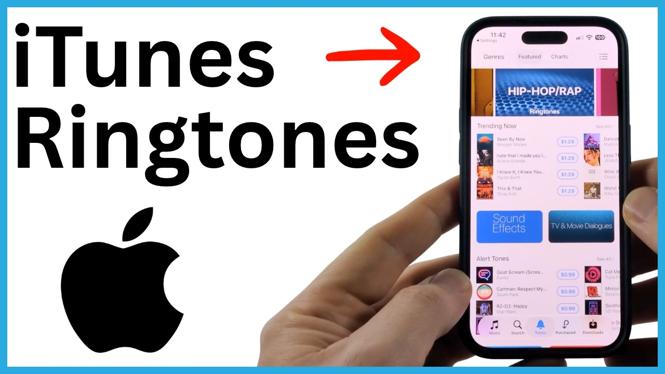
The iTunes ringtone store opens. Browse the available tones using the charts, or tap Search at the bottom to look for a particular song or artist. Ringtones sold in the store are made for use as iPhone tones, so you can purchase and apply one without manually creating a ringtone file.
Video Tutorial
Preview the tone before you buy it
Tap a ringtone to open its product page. To hear it, tap the tone name on that page. This plays the available ringtone preview, letting you check the part of the song that will play when someone calls.
Take a moment to listen before purchasing. A ringtone is usually a selected clip rather than the complete song, so the preview is the useful part to check. If it is not the sound you want, return to the charts or search results and choose another option.
Purchase and set the ringtone
When you find a tone you want, you can purchase it from its page or from the store listing. The quickest route shown in the store is to choose the option that sets it as your default ringtone during checkout.
- Tap the price for the ringtone you want to buy.
- Choose Set as Default Ringtone.
- Review the displayed price.
- Tap Purchase to confirm the purchase.
You should see a confirmation after the purchase finishes. Your selected tone is now purchased through iTunes and set as the default ringtone. This means incoming calls use that tone unless you later select a different ringtone in Settings.
Choose a purchased tone from Settings
You can change your selection at any time after buying a tone. Go back to Settings, open Sounds & Haptics, and tap Ringtone. Purchased tones appear at the top of the ringtone list.
Tap the name of a tone to select it. Your iPhone plays a sample when you choose an item, which helps confirm you have picked the right one. The selected ringtone becomes the sound used for incoming calls.
This screen also includes the built-in ringtone options already on your iPhone. You can switch between a purchased tone and a built-in sound whenever you want, without buying the tone again.
Download purchased tones that are missing
If you bought a ringtone before but do not see it in the list, return to the Ringtone screen in Sounds & Haptics. At the top, tap Download All Purchased Tones.
Your iPhone checks iTunes and downloads tones connected to your purchases. Once the download completes, check the top of the ringtone list again and tap the tone you want to use.
If the ringtone still does not appear after downloading purchased tones, restart your iPhone. Then return to Settings > Sounds & Haptics > Ringtone and check the list again.
What this method covers
This process is for buying ringtones through the iTunes Tone Store and setting one as your default ringtone. It does not use an existing song file already saved on your iPhone. For a song file you already have, you need a separate method to turn that file into a usable ringtone.
More iPhone Tips & Tutorials:
 Subscribe Now! 🙂


Discover more from Gauging Gadgets
Subscribe to get the latest posts sent to your email.