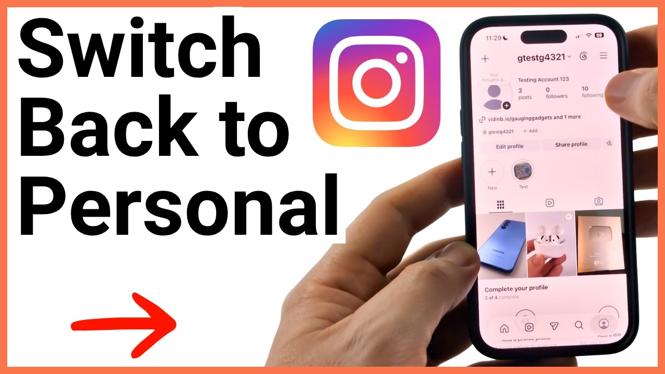
Change your Instagram profile from professional to personal
If you no longer need Instagram insights, professional tools, or an account category, you can switch your profile back to a personal account from the Instagram app. The same process works if your current professional profile is set up as a business account or a creator account.
Before you confirm the change, Instagram shows a notice explaining that you will lose some features available with a professional account. Read that notice before continuing. Once the account type changes, you can check that Instagram lists your profile as personal.
Video Tutorial
How to switch back to a personal account on Instagram
- Open the Instagram app and select your profile icon at the bottom of the screen.
- Select the three lines in the top-right corner to open your settings.
- Near the top of the settings area, find Your insights and tools.
- Select Account type and tools.
- At the top of that screen, select Account type. Your current type should show as professional.
- Select the blue Switch account type option.
- Select Switch to personal account.
- Review the information Instagram displays about the features that will be removed from your account.
- Select Switch to personal account at the bottom to confirm.
Give Instagram a moment to process the request. When the app returns you to the account type screen, it should show Account type: Personal. That confirms the change was successful.
What changes when you use a personal account
A personal account does not include the professional features attached to business and creator profiles. Instagram warns you about this before the final confirmation, so take a moment to review the message in the app instead of tapping through it right away.
The change is useful when you only use Instagram personally and do not need professional account tools. It also removes the need to keep your profile set up as a creator or business profile just to maintain an account category or professional account type.
Your posts, profile, and account remain in place while Instagram changes the account type. You are changing the profile setup, not creating a new Instagram account. After the switch finishes, return to your profile and use Instagram normally with the personal account setting.
Make your profile private after switching
Professional Instagram accounts have different privacy options from personal accounts. If your goal is to make your profile private, switch the account type to personal first. After Instagram confirms the profile is personal, look for Instagram’s privacy controls and enable a private profile if that is what you want.
A private profile limits who can see your content to people you approve. Switching back to personal does not mean you need to make the account private, but it gives you that option again if you prefer more control over who follows you.
If Instagram still shows a professional account
Go back to Account type under Account type and tools and check the label at the top. The label should say personal after the change completes. If it still says professional, wait for the app to finish loading, then check the screen again.
Make sure you completed both selections named Switch to personal account. The first selection starts the change process, and the final button at the bottom confirms it after Instagram displays the account feature notice.
If the menu looks different, begin from your profile, open the three-line menu, and look for the area related to insights, tools, and account type. Instagram can adjust its layout, but the setting you need is the account type control for your professional profile.
Quick check after the switch
Open your profile settings one more time and return to Account type. Seeing Personal there is the simplest way to verify that your business or creator profile is no longer a professional account. You can then decide if you want to keep the profile public or use the available privacy controls for a personal account.
More Instagram Tips & Tutorials:
 Subscribe Now! 🙂

Discover more from Gauging Gadgets
Subscribe to get the latest posts sent to your email.