Turn On Net Debug Stats in Fortnite
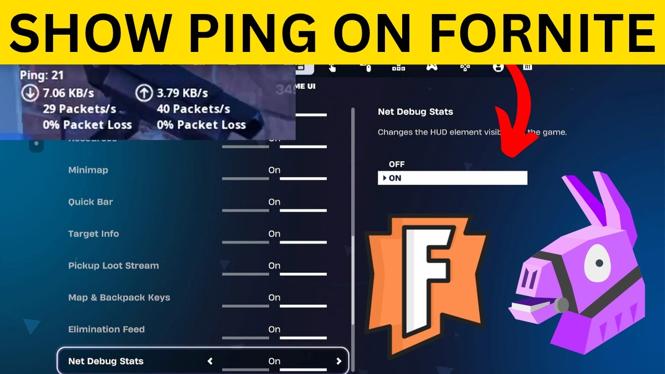
Fortnite can display your ping while you play, but you need to enable the right HUD setting first. The option is called Net Debug Stats. Once it is on, Fortnite shows your ping along with FPS and other connection information during gameplay.
You can use these steps on PC, Xbox Series X|S, Xbox One, and PlayStation 5. The settings location is the same idea on each platform, although you will use your controller menu button instead of selecting the on-screen avatar.
Video Tutorial
How to Show Ping in Fortnite
- Open Fortnite and select your avatar in the top-right corner of the screen. If you use a controller, press the menu button on your controller to open the menu.
- Scroll right through the tabs at the top of the menu until you reach the gear icon.
- Scroll down and select Settings.
- In the tabs across the top of Settings, scroll right and open Game UI.
- Go down to the menu on the left and select HUD Options.
- Move to the settings on the right, then scroll down until you find Net Debug Stats.
- Change Net Debug Stats to on.
- Select Apply to save the change.
Return to a match after applying the setting. Your ping should now appear on screen while you play Fortnite.
What Net Debug Stats Shows
Ping measures the delay between your game and the Fortnite servers. It is measured in milliseconds, shown as ms. A lower number generally means less delay between an action you make and the server receiving it.
Keeping ping visible is useful because connection problems can change during a match. If your game suddenly feels delayed, check the number on screen rather than guessing if the problem is related to your connection. A jump in ping can help explain lag that appears while moving, building, or fighting.
The Net Debug Stats setting also displays FPS and connection information. FPS means frames per second. Seeing both values at the same time can help you separate a connection issue from a performance issue. For example, a rising ping points to network delay, while an FPS drop points to the game rendering fewer frames.
If Ping Does Not Appear
First, open the Fortnite settings again and confirm that Net Debug Stats is still turned on. Make sure you selected Apply after changing the option. Leaving the screen without applying the setting can prevent the change from being saved.
Also check that you are looking while you are actively playing Fortnite. This setting is meant to show your connection statistics during gameplay. If you just enabled it, enter or return to a match and check the HUD again.
If you play on more than one platform, enable the setting on the platform where you want to see the stats. Use the same path: open the menu, select the gear, choose Settings, open Game UI, select HUD Options, and turn on Net Debug Stats.
Keep an Eye on Connection Changes
After you turn on Net Debug Stats, leave it enabled for a few matches. This gives you a clearer view of how your ping behaves while you play. If the number stays consistent, your connection is stable during those matches. If it rises sharply at certain times, you can identify when lag spikes are happening.
You can return to the same HUD Options screen at any time if you want to hide the information later. Turn Net Debug Stats off and select Apply. Until then, the ping display gives you a quick way to monitor your Fortnite connection without leaving the match.
More Fortnite Tips & Tutorials:
 Subscribe Now! 🙂

Discover more from Gauging Gadgets
Subscribe to get the latest posts sent to your email.