YouTube can start the next video after the one you are watching, and it can also play video previews while you scroll through the Home feed or search results. These are separate settings in the YouTube mobile app, so you need to turn off both if you want videos to stay still until you choose one.
The steps below apply to the YouTube app on iPhone, Android phones, and Samsung phones. You will disable Autoplay next video and Playback in feeds.
Video Tutorial
Turn off autoplay for the next video
This setting stops YouTube from automatically moving to another video when the current video ends. It is useful when you want to decide what plays next instead of having YouTube continue a queue for you.
- Open the YouTube app on your phone.
- Select You in the bottom menu.
- Select the gear icon in the top-right corner to open Settings.
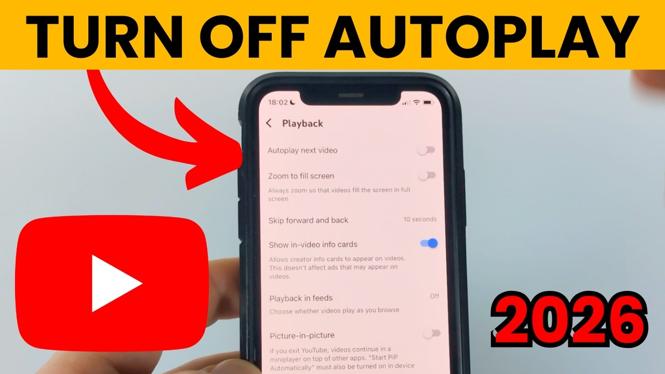
- Scroll down and select Playback.
- Turn off the toggle next to Autoplay next video.
Once the toggle is off, a video will end without YouTube automatically starting another one. You can still choose and play another video manually whenever you want.
Stop videos from playing as you scroll
Playback in feeds controls the previews that start moving while you browse YouTube. You may notice these previews in the Home feed or while searching for videos. Turning this option off stops those videos from playing automatically as you scroll.
- Stay in Settings and open Playback.
- Select Playback in feeds.
- Turn Playback in feeds off.
Return to the YouTube Home screen after changing the setting. Video thumbnails in your feed should no longer begin playing on their own while you browse. You can tap a video when you are ready to watch it.
If Playback in feeds is not under Playback
The location of the feed playback option can vary between phones. On some Android phones, including some Samsung phones, you may not see Playback in feeds inside the Playback section.
If that happens, go back to the main Settings screen and check General instead.
- Open the YouTube app and select You.
- Select the gear icon to open Settings.
- Select General.
- Look for Playback in feeds.
- Turn the setting off.
You only need to change it in one location. If the option appears under General, that is the version of the setting used by your app and phone.
Check that both YouTube autoplay settings are off
It helps to test each setting after changing it because they affect different parts of the app.
- Open a video and let it reach the end. With Autoplay next video turned off, YouTube should not automatically begin another video.
- Go back to the Home feed and scroll past a few video thumbnails. With Playback in feeds turned off, the preview videos should not start moving as you browse.
If a setting appears to still be active, return to Settings and confirm its toggle is off. Check both Playback and General for Playback in feeds, since its placement can differ on Android devices.
What each setting changes
Autoplay next video applies after you finish watching a video. Disabling it gives you control over the next item you watch.
Playback in feeds applies while you browse. Disabling it keeps feed thumbnails from automatically playing previews in the Home screen or while searching.
Turning off both settings makes YouTube quieter and more predictable. Videos will play when you tap them, and the app will not automatically continue to another video after your current one ends.
More YouTube Tips & Tutorials:
 Subscribe Now! 🙂

Discover more from Gauging Gadgets
Subscribe to get the latest posts sent to your email.