Copy a YouTube link first
You do not need to search through YouTube account settings to find a YouTube Channel ID on your phone. The quickest method is to copy a link for the channel you need, or copy a link from any video posted on that channel. Then paste that link into the YouTube Channel ID Finder on ConvertResize.com.
This works from the YouTube app on an iPhone, iPad, or Android phone. You can use a channel link when you are already viewing the channel, or use a video link if that is easier to access.
Video Tutorial
Get the link from a YouTube channel
Use these steps when you can open the channel page in the YouTube app. This is useful for finding your own ID or the ID for another channel.
- Open the YouTube app on your iPhone, iPad, or Android device.
- Navigate to the YouTube channel whose ID you need.
- Select the three dots in the top-right corner of the channel page.
- Select Share.
- Select Copy link.
The channel URL is now copied to your phone’s clipboard. Keep it there while you open a browser for the next part.
Use a video link instead
You can also find a channel’s ID from any video uploaded by that channel. This is handy when you found a video in YouTube search, recommendations, or a message, but do not want to open the full channel page first.
- Open a video from the channel in the YouTube app.
- Select the three dots for that video.
- Select Share.
- Select Copy link.
The copied video URL identifies the channel that uploaded the video. You can use it in the same Channel ID Finder as a direct channel URL.
Find and copy the YouTube Channel ID
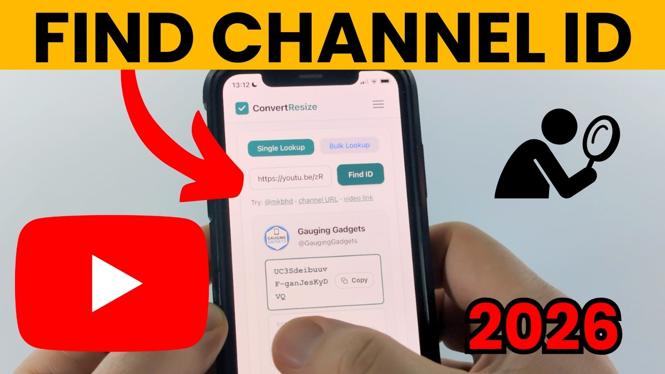
After copying either type of YouTube link, open your preferred mobile browser and go to ConvertResize.com. The site includes a tool called YouTube Channel ID Finder.
- At the top of ConvertResize.com, search for YouTube.
- Open YouTube Channel ID Finder from the results.
- Tap the text box and paste the channel URL or video URL you copied from YouTube.
- Select Find ID.
- Review the Channel ID shown in the results.
- Select Copy to copy the ID to your clipboard.
You can now paste the Channel ID anywhere it is required. For example, a third-party app may request it when you connect a YouTube channel, or you may need it during account verification.
What the results mean
A YouTube Channel ID is the unique identifier assigned to a channel. It is different from a channel name, handle, or custom channel URL. Names and handles can be easy to recognize, but the Channel ID is the specific value some services use to identify the correct channel.
The finder also displays an old legacy link that includes the Channel ID. You may not need this link for most tasks, but it can help if a service specifically asks for an older channel URL format.
Quick checks if you get the wrong result
Make sure the link came from the correct channel or a video uploaded by that channel. If you copied a link while viewing another account’s content, the returned ID will belong to that account instead.
If the pasted field is blank, return to YouTube and use Copy link again. Then paste the link directly into the finder before copying anything else. You only need one valid YouTube channel or video URL to retrieve that channel’s ID on mobile.
More YouTube Tips & Tutorials:
 Subscribe Now! 🙂

Discover more from Gauging Gadgets
Subscribe to get the latest posts sent to your email.