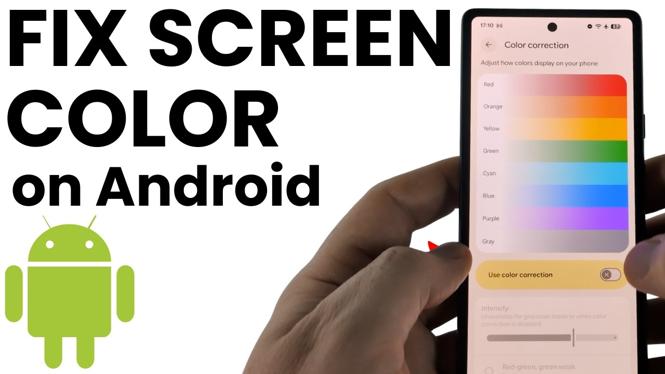
Turn Off the Color Settings Causing the Problem
If your Android phone screen suddenly looks black and white, inverted, or tinted with odd colors, an accessibility color setting is usually on. You do not need to reset your phone to fix this. Check Color correction first, then check Color inversion.
Color correction can make the entire display appear grayscale when it is enabled. Color inversion changes the way colors are displayed, which can make apps, photos, and menus look wrong. Turning these settings off restores the normal screen colors on the Android phone shown in this guide.
Video Tutorial
Set Your Android Screen Color Back to Normal
Start by opening your phone’s settings. The menu names below are the ones shown on the Android device in the video. Once you reach the color options, check each setting one at a time.
- Swipe up on your Android phone to open the app list.
- Scroll through the apps and select Settings.
- Scroll to the bottom of Settings and select Accessibility.
- Under Accessibility, select Color and motion.
- Select Color correction.
- Turn Color correction off if it is enabled.
As soon as Color correction is turned off, your display should return from black and white to its usual colors. Go back to your home screen or open a photo to confirm that colors look normal again.
Turn Off Color Inversion Too
If your screen still looks unusual after disabling Color correction, return to the Color and motion section. Check Color inversion next.
- From Color and motion, select Color inversion.
- Check whether Color inversion is enabled.
- Turn Color inversion off.
- Return to the screen that looked wrong and check the colors again.
Color inversion does not usually make the screen plain gray. Instead, it reverses colors and can make white areas dark, dark areas light, and other colors look unnatural. This can affect everything on the phone, including the Settings app, icons, photos, and web pages.
How to Tell Which Setting Is Causing the Issue
The appearance of the display gives you a useful clue. If nearly everything is black, white, or shades of gray, check Color correction. That is the setting demonstrated as causing a grayscale display.
If colors are present but look reversed or very strange, check Color inversion. Turning off both settings is a quick way to rule out the two accessibility options covered here.
Check the display after each change. This makes it easier to see which setting caused the problem and avoids changing settings that are already correct.
Why Your Screen Colors Changed
Both of these options are accessibility features. They can be helpful in specific situations, but they change the appearance of the entire Android interface when enabled. It is easy to mistake the result for a damaged screen or a display problem.
Before assuming there is a hardware issue, open Settings, go to Accessibility, then open Color and motion. Make sure both Color correction and Color inversion are off. In many cases, that is all you need to set the screen color back to normal on an Android phone.
Quick Check Before You Reset Anything
A factory reset removes your data and should not be the first step for a screen that only has incorrect colors. First, disable Color correction and Color inversion in the Accessibility settings. These controls can change the whole display immediately, so they are the most direct settings to check when the screen is gray, inverted, or discolored.
Once both options are off, your normal Android colors should be back without resetting the phone.
More Android Tips & Tutorials:
 Subscribe Now! 🙂

Discover more from Gauging Gadgets
Subscribe to get the latest posts sent to your email.