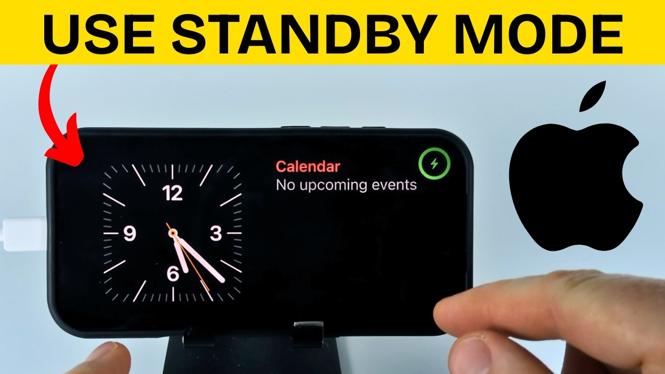
StandBy Mode lets your iPhone show useful information while it is charging in a sideways position. You can use it as a clock, photo display, or widget screen without picking up and using your phone as normal.
Before you try it, make sure StandBy Mode is enabled in Settings. Once it is on, your iPhone should enter StandBy automatically when the screen is off, the phone is charging, and it is turned sideways.
Video Tutorial
Turn on StandBy Mode
You need to enable StandBy Mode before your iPhone can show the charging display. The setting also gives you a few options for how StandBy behaves.
- Open the Settings app on your iPhone.
- In the second section of Settings, scroll to the bottom and select StandBy.
- Turn on StandBy.
- Review the available options, including whether StandBy can show notifications.
- Select Display.
- Make sure the display setting is set to Automatic.
With the display set to Automatic, StandBy can turn on when your iPhone is charging and placed on its side.
Use StandBy while your iPhone charges
After enabling the setting, you do not need to open a special app to start StandBy. Set your phone up in the correct position instead.
- Turn off your iPhone screen.
- Plug your iPhone into power.
- Place the iPhone sideways in landscape orientation.
- Wait for the StandBy screen to appear automatically.
The display can show a clock, photos, and widgets. This makes it useful on a desk, counter, or bedside charging spot. Keep the iPhone supported on its side so the screen stays in landscape orientation while it charges.
Customize the StandBy widgets
StandBy widgets work much like the widgets on your iPhone Home Screen. You can change the widgets already shown, browse through available ones, and add more widgets to the StandBy display.
- Start StandBy by charging your iPhone on its side.
- Long press the widgets shown on the StandBy screen.
- Unlock the iPhone or authenticate with Face ID if prompted.
- Swipe through the available widgets to switch what is displayed.
- Select the plus symbol to add a new widget.
- Choose the widgets you want to use from the list.
- Select Done in the top-right corner when you finish.
Selecting Done saves your changes. The next time your iPhone enters StandBy, it will use the widget setup you selected.
Choose a setup that fits where you charge
A simple clock is useful if your phone charges next to your bed. A photo display can work better on a desk or kitchen counter. Widgets are helpful when you want quick information visible while the iPhone stays on its charger.
You can return to the widget edit screen whenever you want to change the layout. Long press the StandBy widgets, unlock with Face ID or your passcode if required, then swipe or use the plus symbol to adjust what appears.
If StandBy Mode does not appear
Check the three conditions shown in this tutorial. StandBy needs to be enabled, your iPhone needs to be charging, and the phone needs to be sideways with its screen turned off.
First, open Settings and confirm that StandBy is turned on. Then open Display within the StandBy settings and confirm it is set to Automatic. After that, turn off the screen, connect power, and place the phone sideways again.
If you see StandBy but do not see the information you want, customize the widgets rather than changing the charging setup. Long press the widget area, unlock the phone, then swipe through widgets or add one with the plus symbol.
Use notifications with care
The StandBy settings include an option for notifications. This can be helpful if you want alerts visible while the phone charges. If you use your iPhone as a bedside clock or keep it in a shared space, review that setting first so the display works the way you prefer.
Once StandBy is enabled and your widgets are configured, using it is straightforward. Turn off the screen, charge the iPhone on its side, and let the StandBy display appear automatically.
More iPhone Tips & Tutorials:
 Subscribe Now! 🙂

Discover more from Gauging Gadgets
Subscribe to get the latest posts sent to your email.